Compare Machine Features & Specifications
Not sure which machine is right for you? Or maybe you're trying to decide between a few options? Our Compare feature makes it easy to put machines side by side and see how their features and specifications stack up.
Where do I find the Compare feature?
You can find our Compare button on both machine categories or the machine product listing.
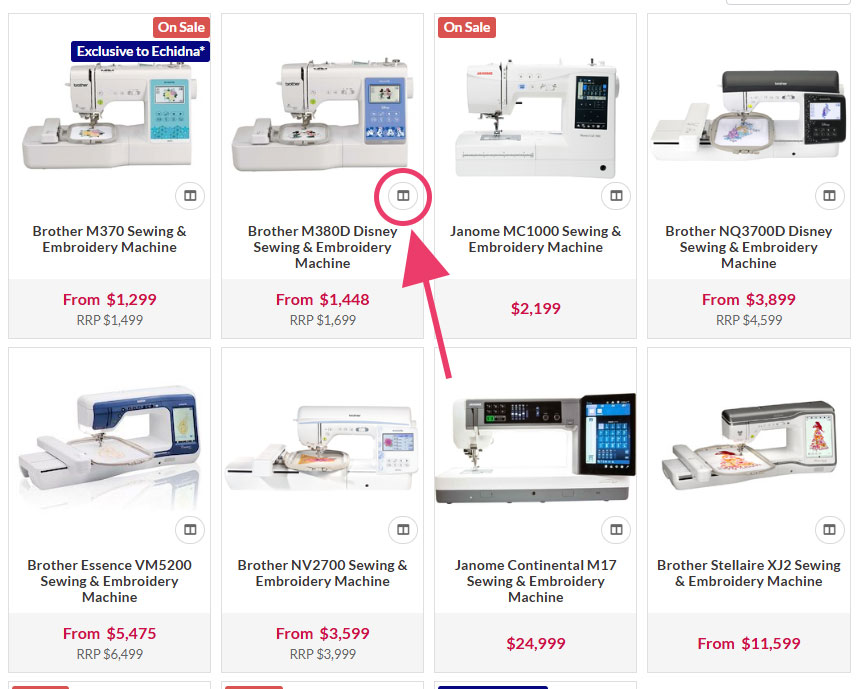
If you are on any of the machine category pages, look for the Compare icon (as shown below) on the machine thumbnail and click on it to add that machine to your compare window.
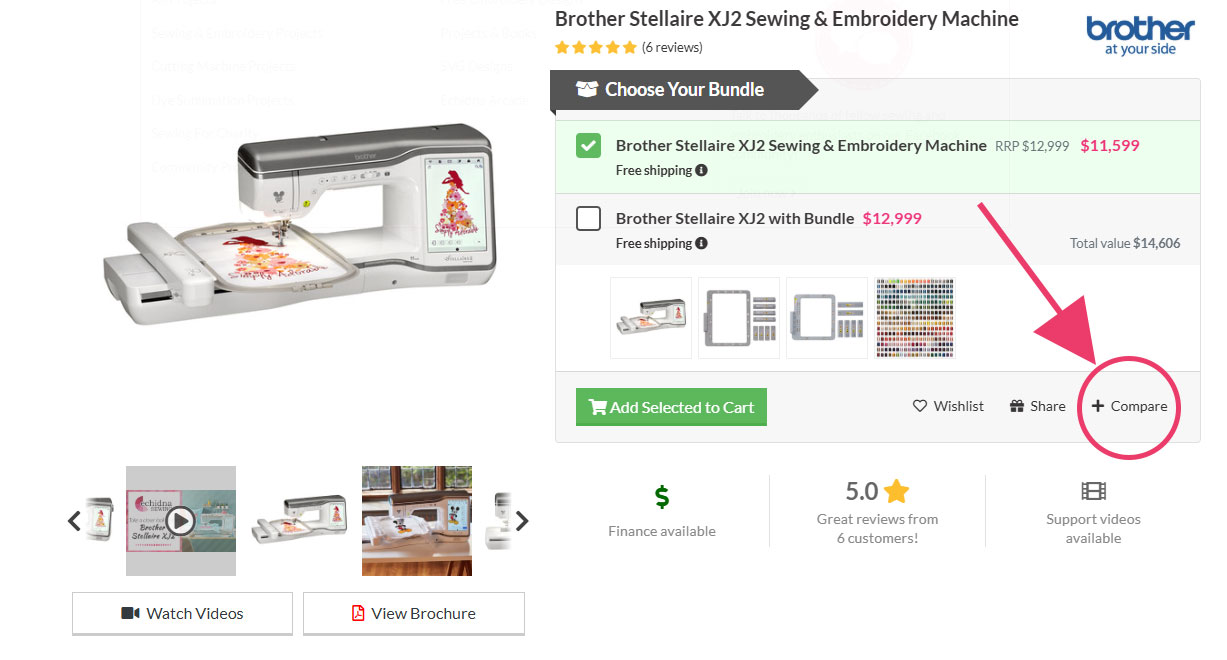
If you are on a machine product listing, look for the Compare icon (as shown below) to the right of the 'Add to cart' button and click on it to add that machine to your compare window.
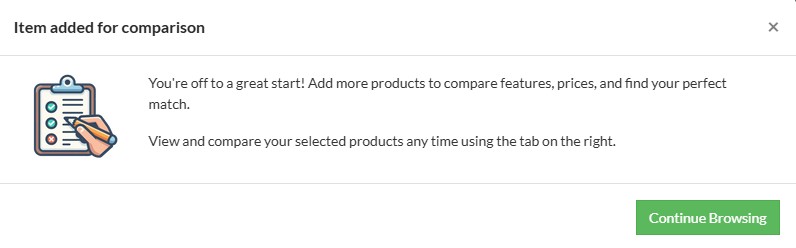
If it is the first machine you have added to the Compare window, you will receive a pop up as shown below. You can click Continue Browsing to find more machines to add.
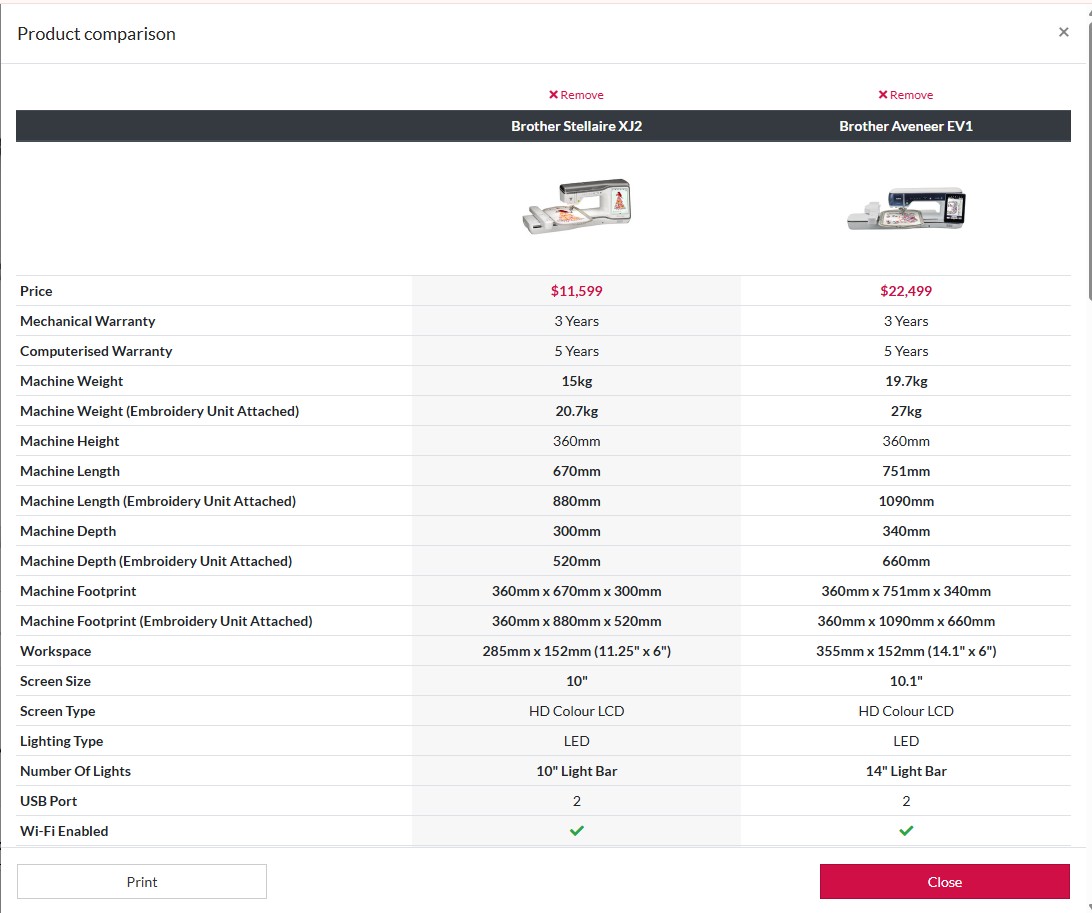
When you add another machine by clicking the Compare icon, the Compare window will then pop up with the machines side by side (as shown below). You can add multiple machines to compare.
To make comparing even easier, features with different values between the selected machines will appear in bold.
In the bottom left corner, you will see a print button. You can print this comparison out to refer to later.
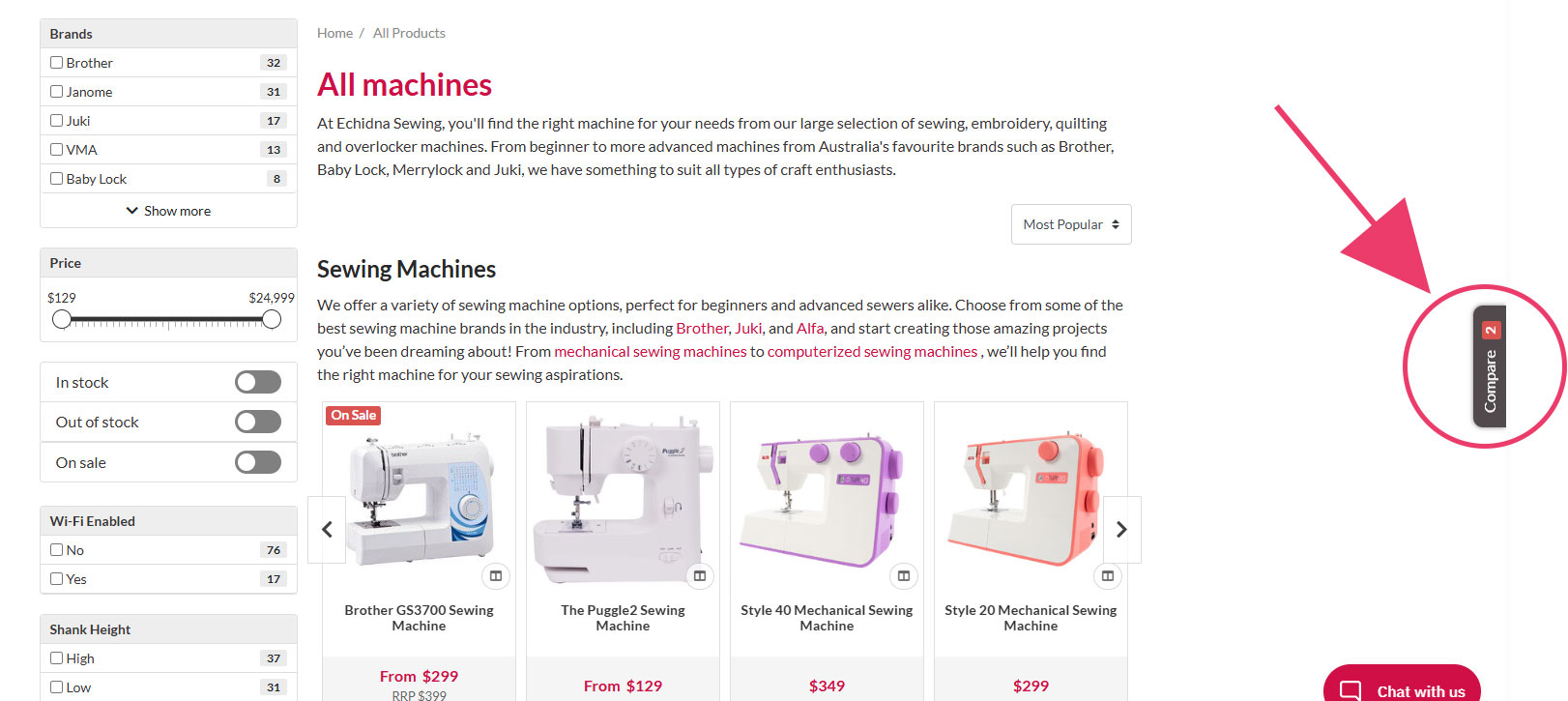
If you wish to continue browsing through the website, you can click the Close button. This Compare window can be reopened by clicking the grey Compare badge that will be visible on the right-hand side of your browser screen (as shown below).
Whether you're choosing your first machine or upgrading to something more advanced, the Compare feature helps you quickly understand the differences between your options. If you find yourself still struggling to decide, you can always contact us to chat to one of our experts.