All Articles
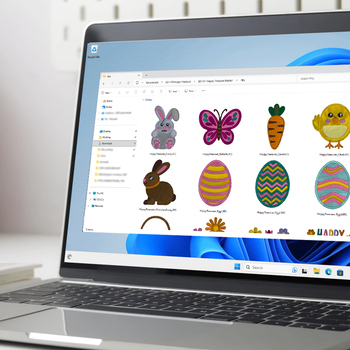
Embrilliance Thumbnailer Explained
Date Posted:14 May 2026
If you’ve ever scrolled through a folder full of embroidery files and had no idea what each design looks like, you’re not alone.
Most embroidery files appear as generic icons on your computer, which means you’re left guessing based on file names or opening each one individually. That’s where Embrilliance Thumbnailer comes in.
It’s a simple tool that saves time, reduces frustration, and makes organising your designs far easier.
Before we look at Thumbnailer, it’s helpful to understand what Embrilliance actually is.
What Is Embrilliance?
Embrilliance is a beginner-friendly (yet powerful) embroidery software suite that allows you to:
- Create and customise designs
- Add lettering and monograms
- Resize or recolour existing designs
- Combine or edit different formats
It’s modular—so you can add more tools as your skills grow. Learn More about Embrilliance →
So, What Is Thumbnailer?
Embrilliance Thumbnailer is actually a standalone tool that works outside the main embroidery software suite. It allows you to:
- See actual preview images of your embroidery files in your computer folders
- No more blank icons or guessing from file names
- Quickly browse, sort, or organise your designs visually
✅ It works with both Windows and Mac
✅ Supports over 30 embroidery file formats (like .PES, .EXP, .JEF, etc.)
Do You Need Thumbnailer?
- If you always open designs from within your software, Thumbnailer might not be essential.
- But if you're like most of us and use File Explorer (Windows) or Finder (Mac) to browse your files before opening or copying to your machine - then yes, Thumbnailer is a game-changer.
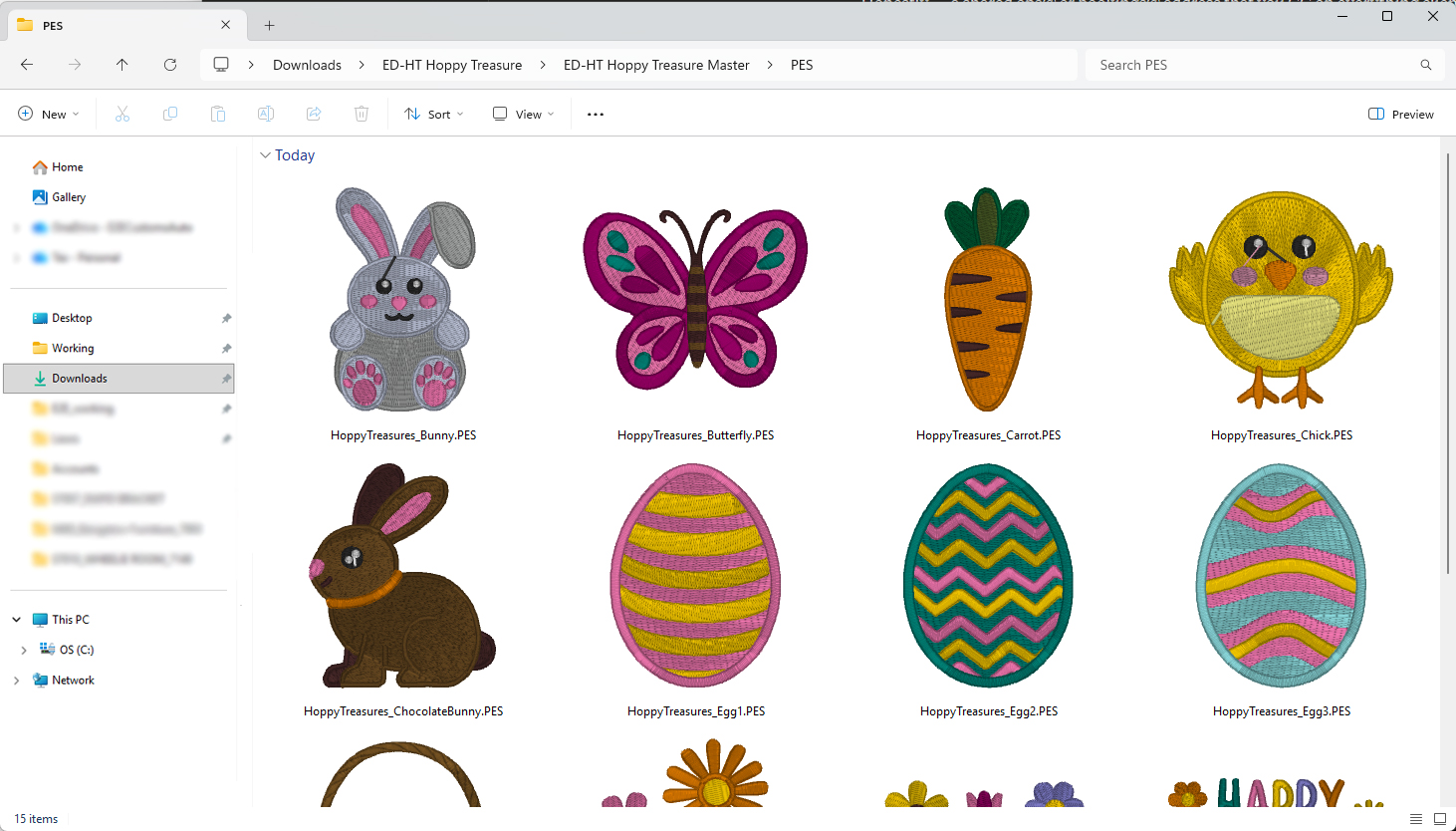
Before & After: What It Looks Like
- Before Thumbnailer: Generic file icons.

- After Thumbnailer: Full-colour stitch previews in your folders.
How to install and activate it
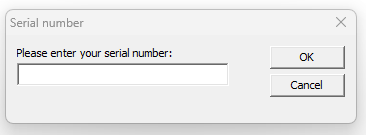
Installing Thumbnailer is as easy as installing any program on your computer but you will need a serial number during installation. If you purchased this through Echidna your serial number would have been emailed to you.
- Firstly, head to the official Embrilliance download page: https://embrilliance.com/downloads
- Scroll down until you see Embrilliance Thumbnailer, then download the correct version for your operating system (Windows or Mac).
- Locate the file you just downloaded (check your Downloads folder).
- Double-click the file to run the installer and follow the on-screen prompts.
- Enter your serial number when prompted.
- Once installed, you should see the Thumbnailer Control Panel on your desktop or in your applications list.
Mac Users: You may need to give permission in System Preferences > Security & Privacy during the install process.
Viewing Your Designs in Folders Overview
After installation, you should see the Thumbnailer icon on your desktop (Windows) or in your Applications folder (Mac). If it’s not visible, try using your system search to locate "Embrilliance Thumbnailer" and launch it.
Once you open the program
- You’ll see a list of embroidery file formats such as .pes, .jef, .dst, .hus, and others.
- Tick the boxes for the formats you want Thumbnailer to recognise and preview.
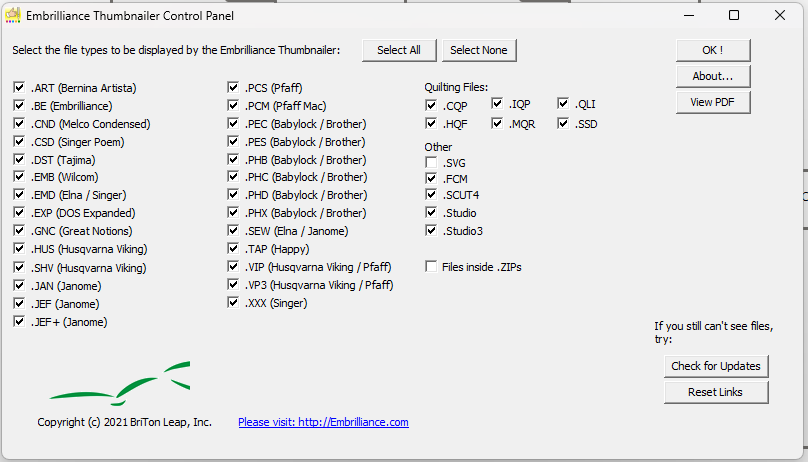
- Tip: If you're unsure which to choose, it’s perfectly fine to select all.
- Click “OK!” to save your settings.
You can revisit this panel any time if you want to change which file types are shown.
Open a Folder with Your Designs
Navigate to one of your design folders using File Explorer (Windows) or Finder (Mac) on your computer.
If everything is set up correctly, you’ll now see preview images of your embroidery designs instead of plain or blank icons.
If you don’t see previews:
- Double-check that you selected the correct file formats in the control panel.
- Try restarting your computer.
Adjust Thumbnail Size (Windows)
To change the size of the preview icons:
- Open a folder containing your designs.
- In the top menu, click the “View” tab.
- Select a display size: Extra Large Icons, Large Icons, Medium Icons, or Small Icons.
We recommend using Large or Extra Large to clearly see your embroidery designs.
Frequently Asked Questions
If you’re having an issue, chances are you’re not alone. Here are some common questions and quick solutions:
Q: I installed Thumbnailer but don’t see any previews. What should I check?
- Open the Thumbnailer control panel and ensure your embroidery file formats are selected.
- Try restarting your computer.
- Double-check that your files are in a supported format (like .pes, .jef, .exp, etc.).
Q: Can I use Thumbnailer with other embroidery software?
Yes, Thumbnailer works independently of any specific software. It simply adds previews to your file browser. You can use it whether or not you use the full Embrilliance suite.
Q: Do I need an internet connection to use it?
No. Once Thumbnailer is installed and activated with your serial number, it runs locally on your computer.
Where to Get Help
- Embrilliance Support: For technical support, bug reports, or activation issues, contact Embrilliance directly: Submit a support ticket
- The Manual: The Thumbnailer user manual contains step-by-step instructions and a full FAQ section. You can download it from the Embrilliance website: Embrilliance Downloads
- Community Groups: We recommend joining the Embrilliance users group on Facebook or following support communities like our Echidna Sewing & Embroidery Community Facebook
- Contact Echidna Sewing: Not sure where to start? We can point you in the right direction. Contact Us