All Articles
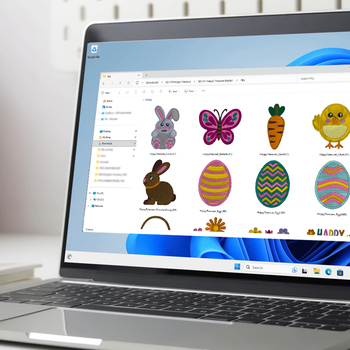
How to Preview Embroidery Files Without Opening Them
Date Posted:14 May 2026
If you’ve ever scrolled through a folder full of embroidery files and had no idea what each design looks like, you’re not alone.
Embroidery files often appear as generic icons on your computer, leaving you guessing from file names or having to open each design individually.
Fortunately, there are software options available that allow you to see full-colour preview images, known as thumbnails, directly within your computer folders. This makes browsing, identifying and organising your embroidery design collection much easier.
Let’s take a closer look at how thumbnail viewing works and the software options available.
What are embroidery design thumbnails?
A thumbnail is a small preview image of a file. Just as your computer displays previews of photographs and images, embroidery thumbnail software allows you to see a visual representation of your embroidery designs.
Having thumbnails enabled can help you to:
- Quickly identify embroidery designs without opening them.
- Browse and organise your design collection more easily.
- Find the correct design when transferring files to your embroidery machine.
- View different designs and colour variations at a glance.
Thumbnail viewing does not change or modify your original embroidery files. It simply changes how they are displayed on your computer.
Before & After: What thumbnail viewing looks like
-
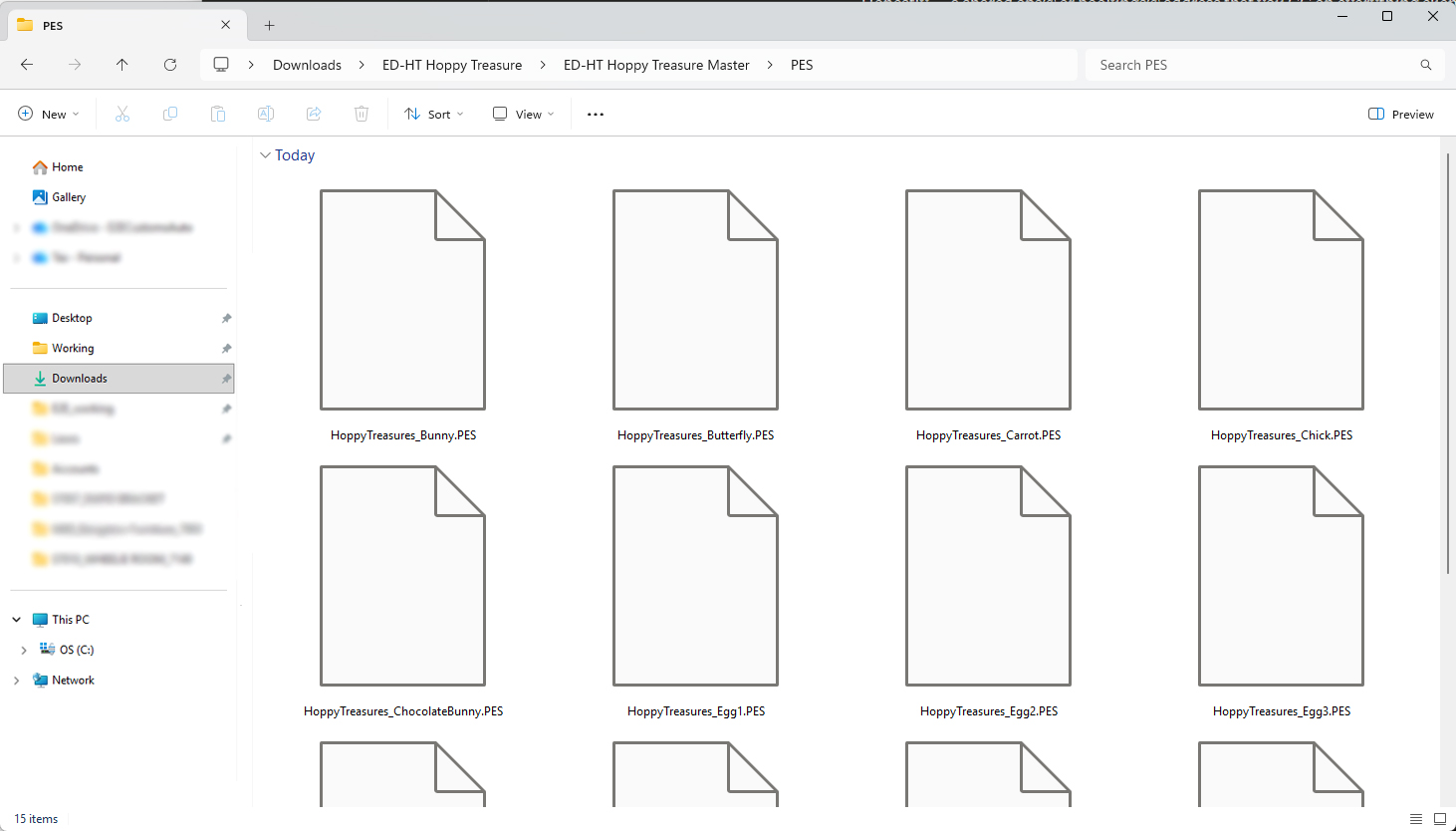
Without thumbnail viewing
Embroidery files appear as generic file icons, making it difficult to identify individual designs without opening them.
-
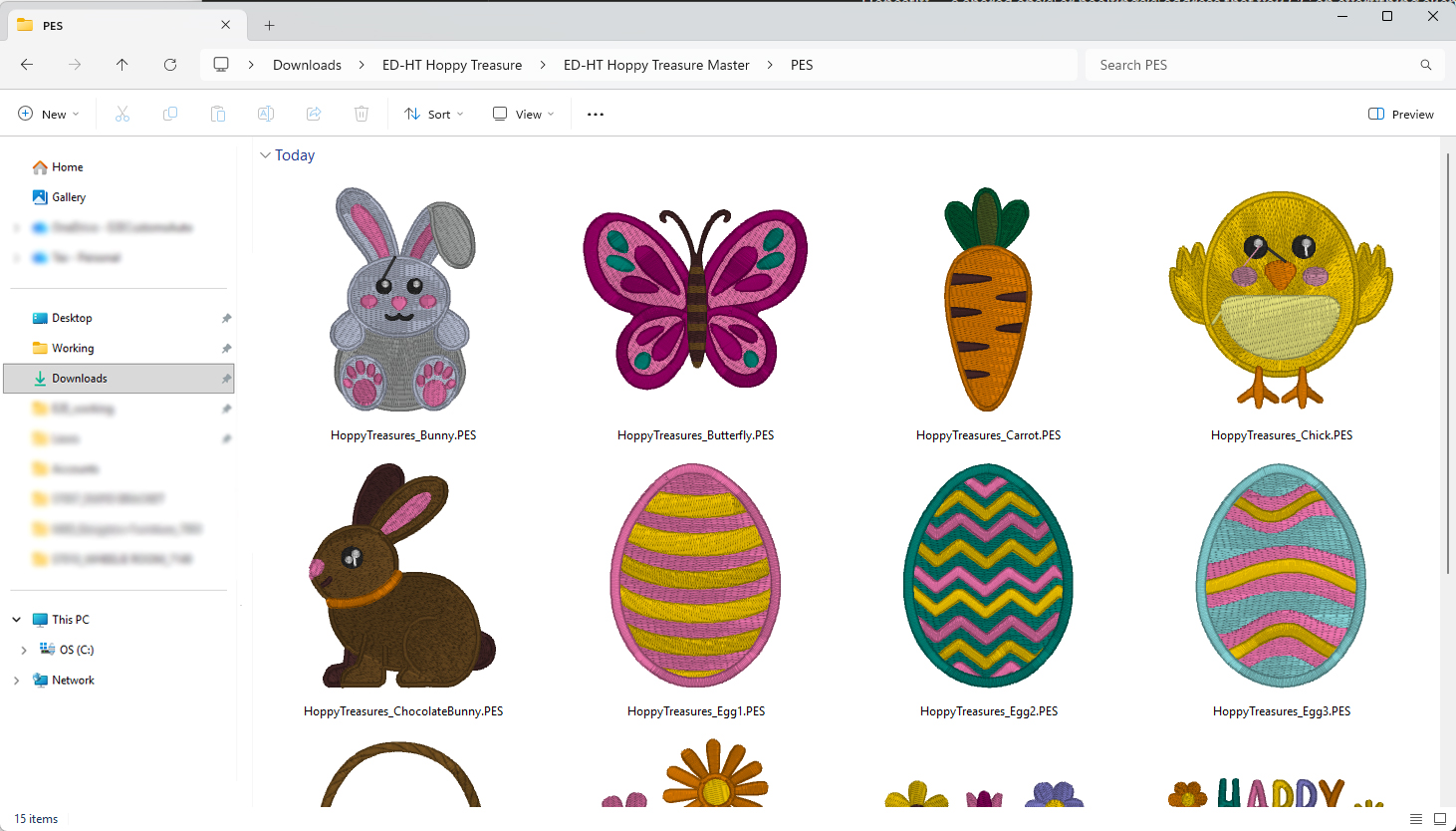
With thumbnail viewing
Embroidery files appear as small, full-colour preview images, allowing you to see what each design looks like directly within your computer folders.
Software options for viewing embroidery thumbnails
Some embroidery software packages include thumbnail viewing as a built-in feature, allowing you to see preview images of supported embroidery files directly within your computer folders.
If you already own embroidery software, it is worth checking whether this functionality is included. You may simply need to enable it within your software or adjust your computer's folder settings.
However, if you don't own embroidery software or your existing software does not offer this functionality, there is no need to invest in a complete embroidery software package just to preview your designs. Standalone thumbnail viewing software, such as Embrilliance Thumbnailer, offers a simple and affordable solution.
What is Embrilliance Thumbnailer
Embrilliance Thumbnailer is a standalone tool that runs independently of the Embrilliance embroidery software suite. You do not need to own any other embroidery software to use it.
It works in the background on your computer, displaying preview images of supported embroidery files directly within your folders.
✅ Compatible with both Windows and Mac.
✅ Supports over 30 embroidery file formats.
✅ Works independently of other embroidery software.
✅ Only needs to be installed and configured once.
✅ Makes browsing, identifying and organising embroidery designs easier.
If all you want to do is preview your embroidery designs without opening them, Embrilliance Thumbnailer is an affordable and easy-to-use option.
Do You Need Thumbnailer?
- If you always open designs from within your software, Thumbnailer might not be essential.
- But if you're like most of us and use File Explorer (Windows) or Finder (Mac) to browse your files before opening or copying to your machine - then yes, Thumbnailer is a game-changer.
How to install and activate it
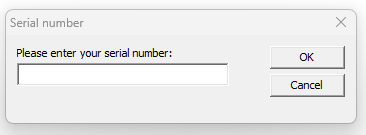
Installing Thumbnailer is as easy as installing any program on your computer but you will need a serial number during installation. If you purchased this through Echidna your serial number would have been emailed to you.
- Firstly, head to the official Embrilliance download page: https://embrilliance.com/downloads
- Scroll down until you see Embrilliance Thumbnailer, then download the correct version for your operating system (Windows or Mac).
- Locate the file you just downloaded (check your Downloads folder).
- Double-click the file to run the installer and follow the on-screen prompts.
- Enter your serial number when prompted.
- Once installed, you should see the Thumbnailer Control Panel on your desktop or in your applications list.
Mac Users: You may need to give permission in System Preferences > Security & Privacy during the install process.
Viewing Your Designs in Folders Overview
After installation, you should see the Thumbnailer icon on your desktop (Windows) or in your Applications folder (Mac). If it’s not visible, try using your system search to locate "Embrilliance Thumbnailer" and launch it.
Once you open the program
- You’ll see a list of embroidery file formats such as .pes, .jef, .dst, .hus, and others.
- Tick the boxes for the formats you want Thumbnailer to recognise and preview.
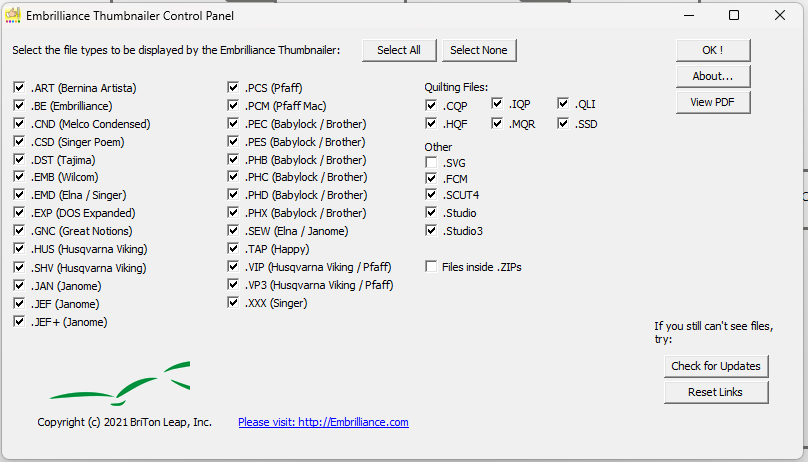
- Tip: If you're unsure which to choose, it’s perfectly fine to select all.
- Click “OK!” to save your settings.
You can revisit this panel any time if you want to change which file types are shown.
Open a Folder with Your Designs
Navigate to one of your design folders using File Explorer (Windows) or Finder (Mac) on your computer.
If everything is set up correctly, you’ll now see preview images of your embroidery designs instead of plain or blank icons.
If you don’t see previews:
- Double-check that you selected the correct file formats in the control panel.
- Try restarting your computer.
Adjust Thumbnail Size (Windows)
To change the size of the preview icons:
- Open a folder containing your designs.
- In the top menu, click the “View” tab.
- Select a display size: Extra Large Icons, Large Icons, Medium Icons, or Small Icons.
We recommend using Large or Extra Large to clearly see your embroidery designs.
Frequently Asked Questions
If you’re having an issue, chances are you’re not alone. Here are some common questions and quick solutions:
Q: I installed Thumbnailer but don’t see any previews. What should I check?
- Open the Thumbnailer control panel and ensure your embroidery file formats are selected.
- Try restarting your computer.
- Double-check that your files are in a supported format (like .pes, .jef, .exp, etc.).
Q: Can I use Thumbnailer with other embroidery software?
Yes, Thumbnailer works independently of any specific software. It simply adds previews to your file browser. You can use it whether or not you use the full Embrilliance suite.
Q: Do I need an internet connection to use it?
No. Once Thumbnailer is installed and activated with your serial number, it runs locally on your computer.
Where to Get Help
- Embrilliance Support: For technical support, bug reports, or activation issues, contact Embrilliance directly: Submit a support ticket
- The Manual: The Thumbnailer user manual contains step-by-step instructions and a full FAQ section. You can download it from the Embrilliance website: Embrilliance Downloads
- Community Groups: We recommend joining the Embrilliance users group on Facebook or following support communities like our Echidna Sewing & Embroidery Community Facebook
- Contact Echidna Sewing: Not sure where to start? We can point you in the right direction. Contact Us