All Projects
Playlist Plaque
Author: Nicole H
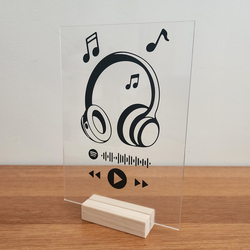
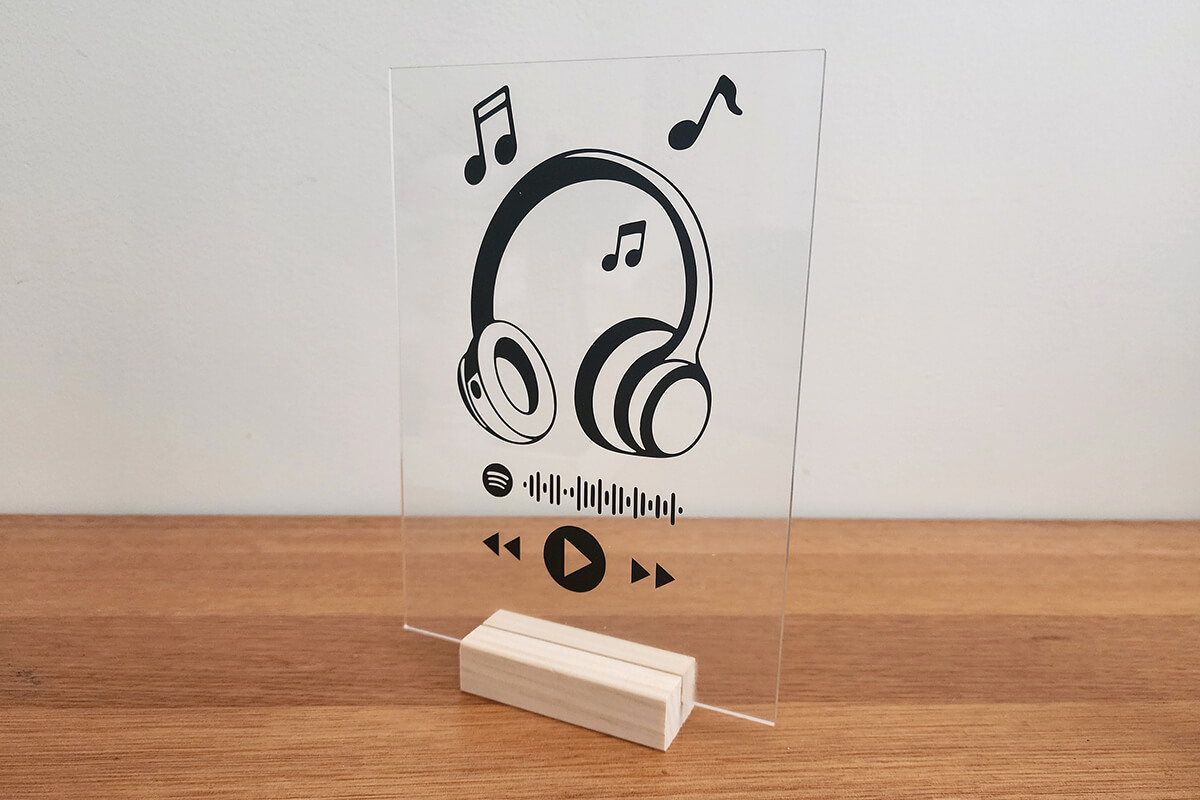
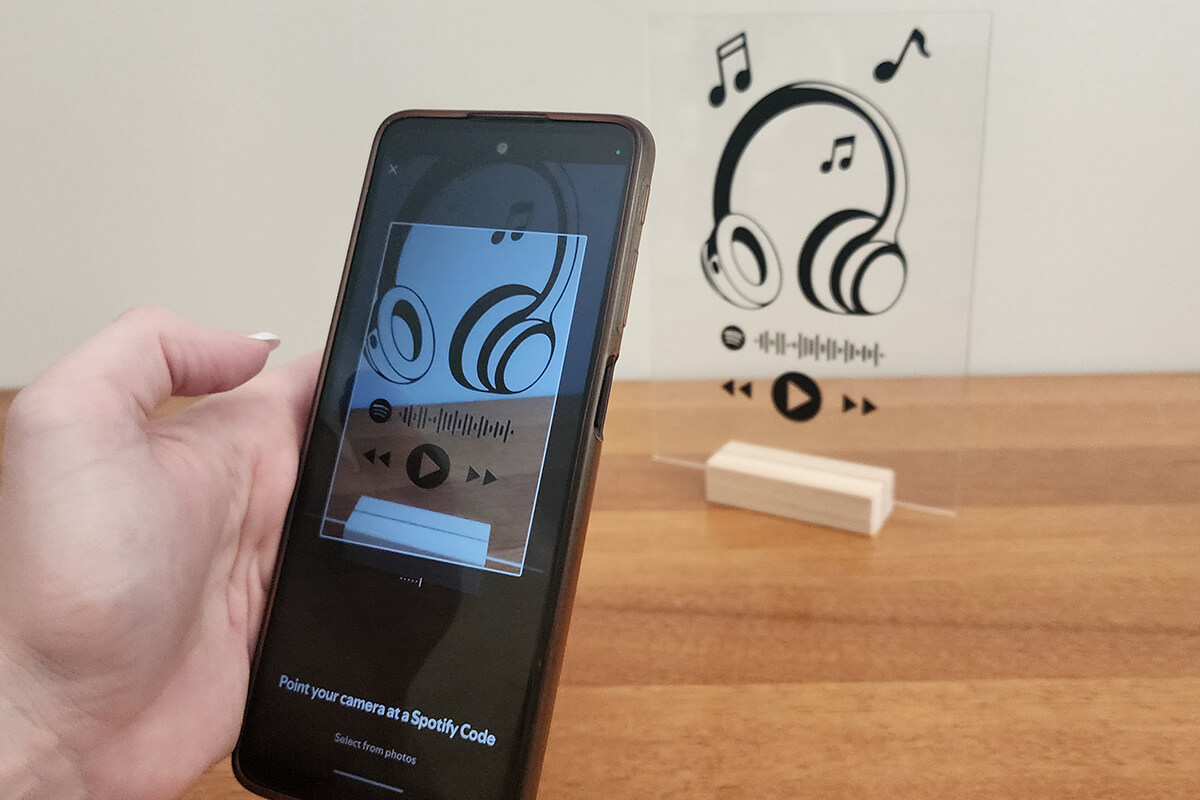
Create a personalised acrylic plaque featuring your favourite playlist using adhesive vinyl and a Spotify code. When scanned in the Spotify app, the code instantly opens the playlist, making this a fun gift idea or decorative piece for a music lover.
In this project we’ll combine a headphone graphic with a Spotify code and cut the design using a Brother ScanNCut.
Free design files:
These include:
- Headphones and Play Icons (.svg)
- CanvasWorkpace Working File (.cwprj)
- ScanNCut Cut File (.fcm)
What you will need:
- Cutting machine (Brother ScanNCut, Cricut, Silhouette etc)
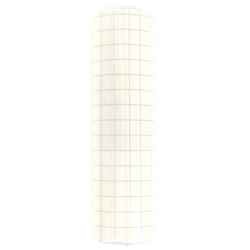
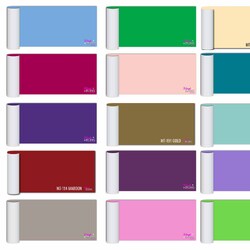
- Adhesive Vinyl
- Acrylic Plaque
- Transfer tape
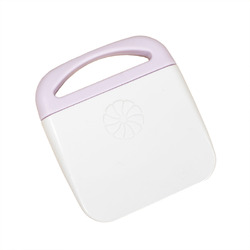
- Scraper
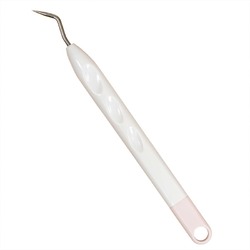
- Weeding Tools
- Ruler or Tape Measure
- Whiteboard Pen (Optional)
- Headphone SVG Download now →
Shop Online:
Detailed instructions:
Generate Spotify Code:
- Create your custom Spotify code by visiting https://www.spotifycodes.com/#create
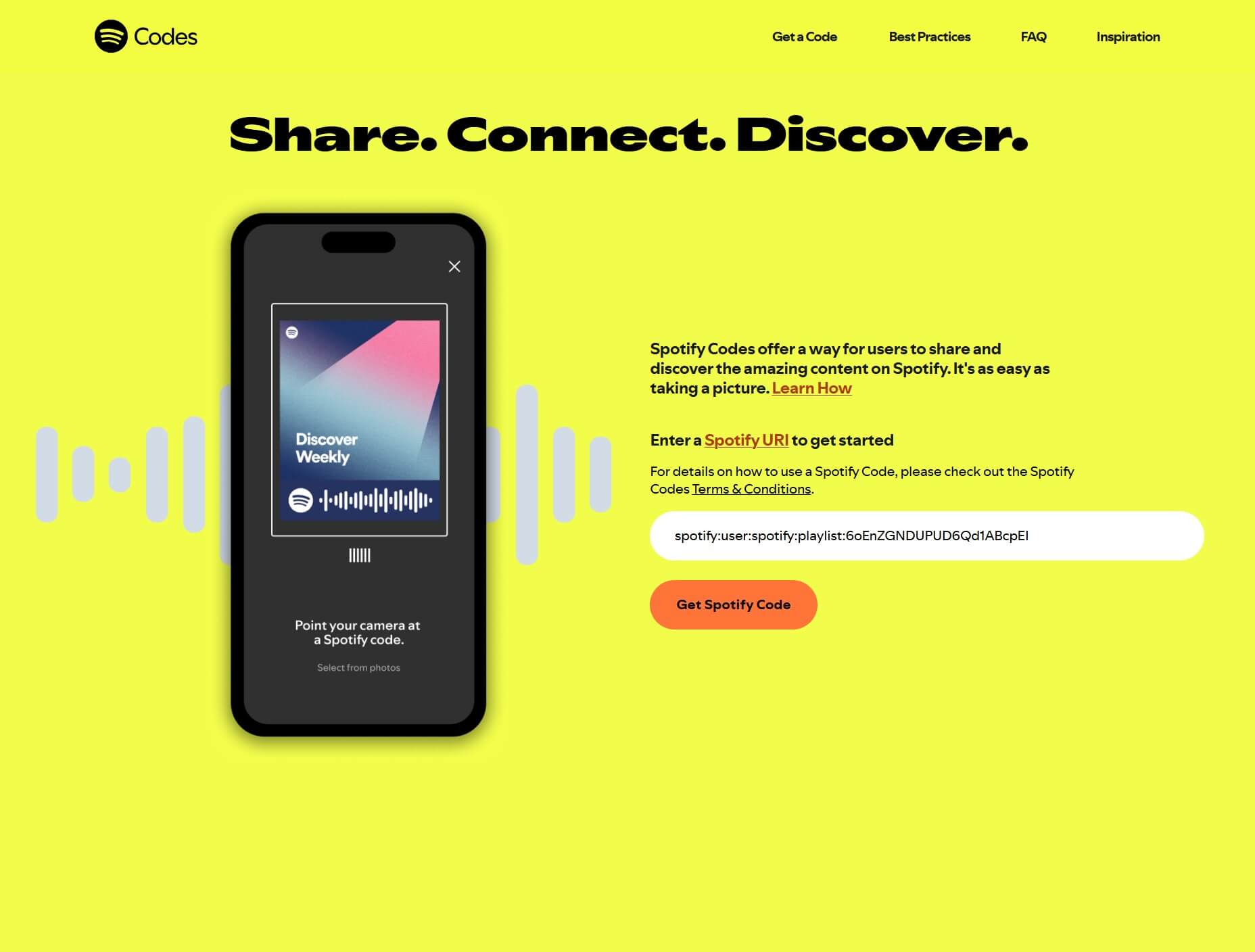
- Follow the instructions to generate a code for your chosen playlist.
- When downloading the code be sure to change the Format option to SVG and download the file to your computer.

Combine design in CanvasWorkspace:
Before jumping into the design, work out how big you would like the design on the plaque and measure where you plan to place the design. This will help you decide the maximum size your vinyl sticker should be.
- Download the free project SVG files.
- Open the desktop version of CanvasWorkspace and login to your account.
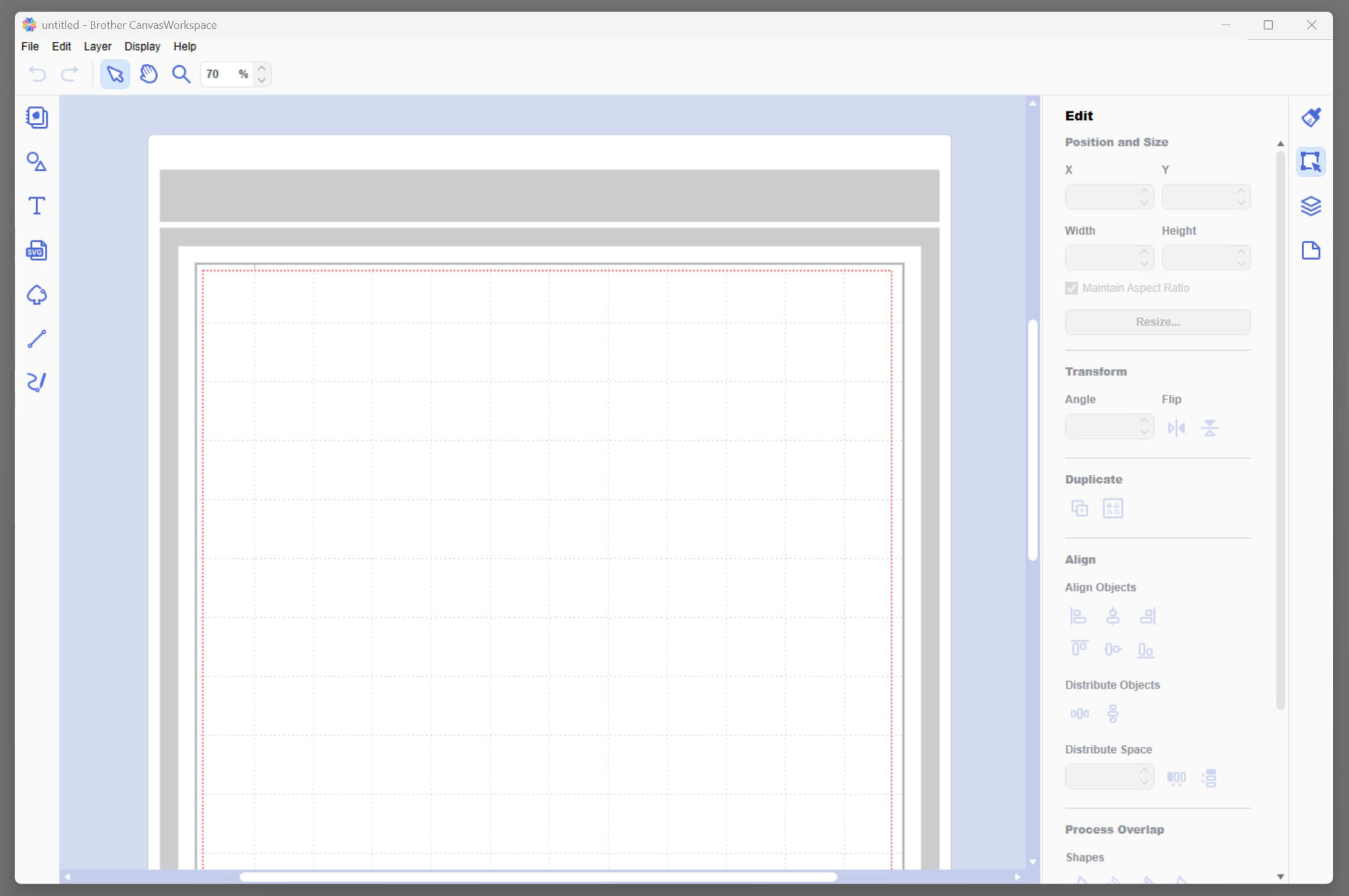
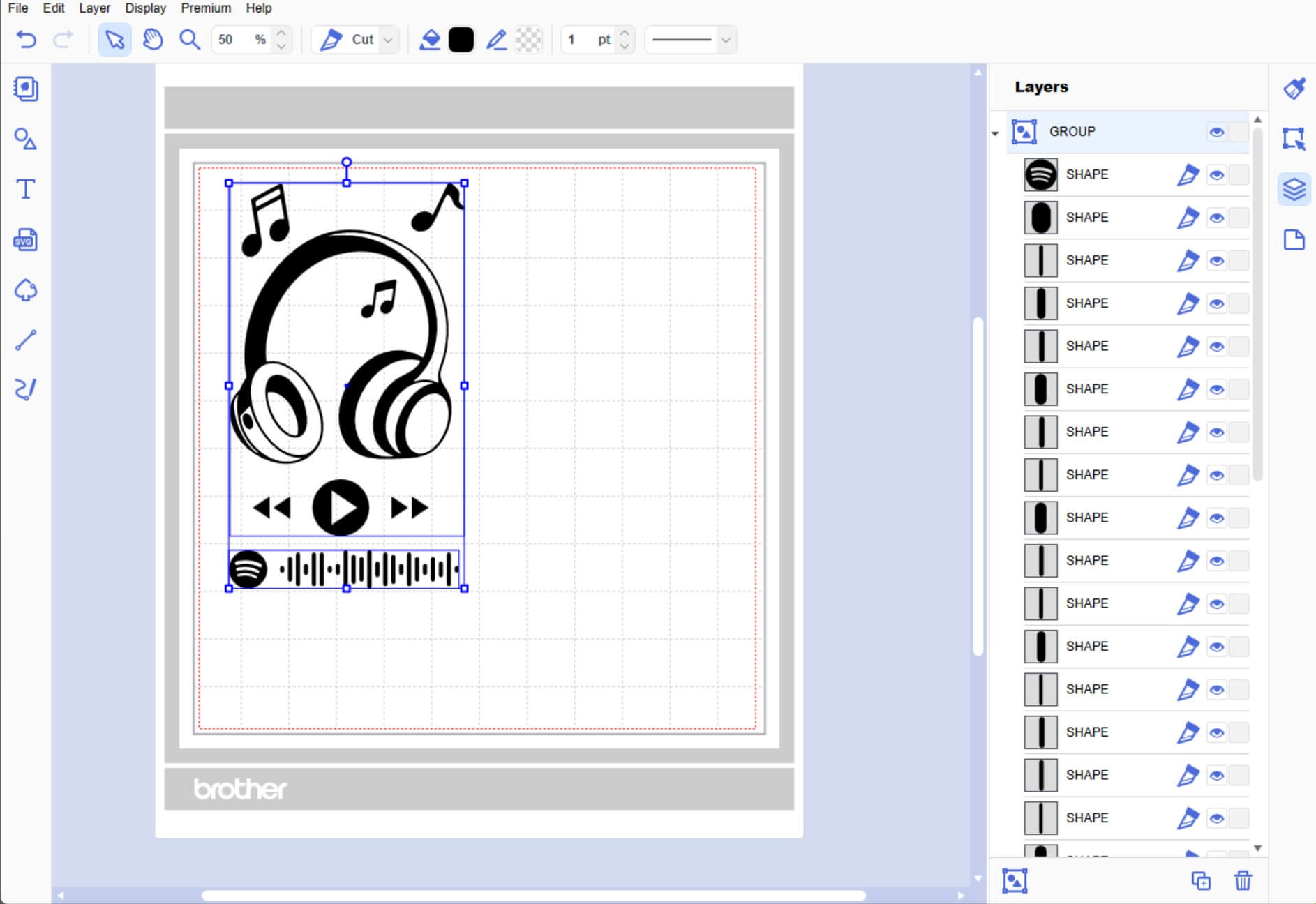
- Import the Headphones design SVG file via the SVG icon in the left menu.
- Select all elements of the headphone design.
- Right-click and choose Group.
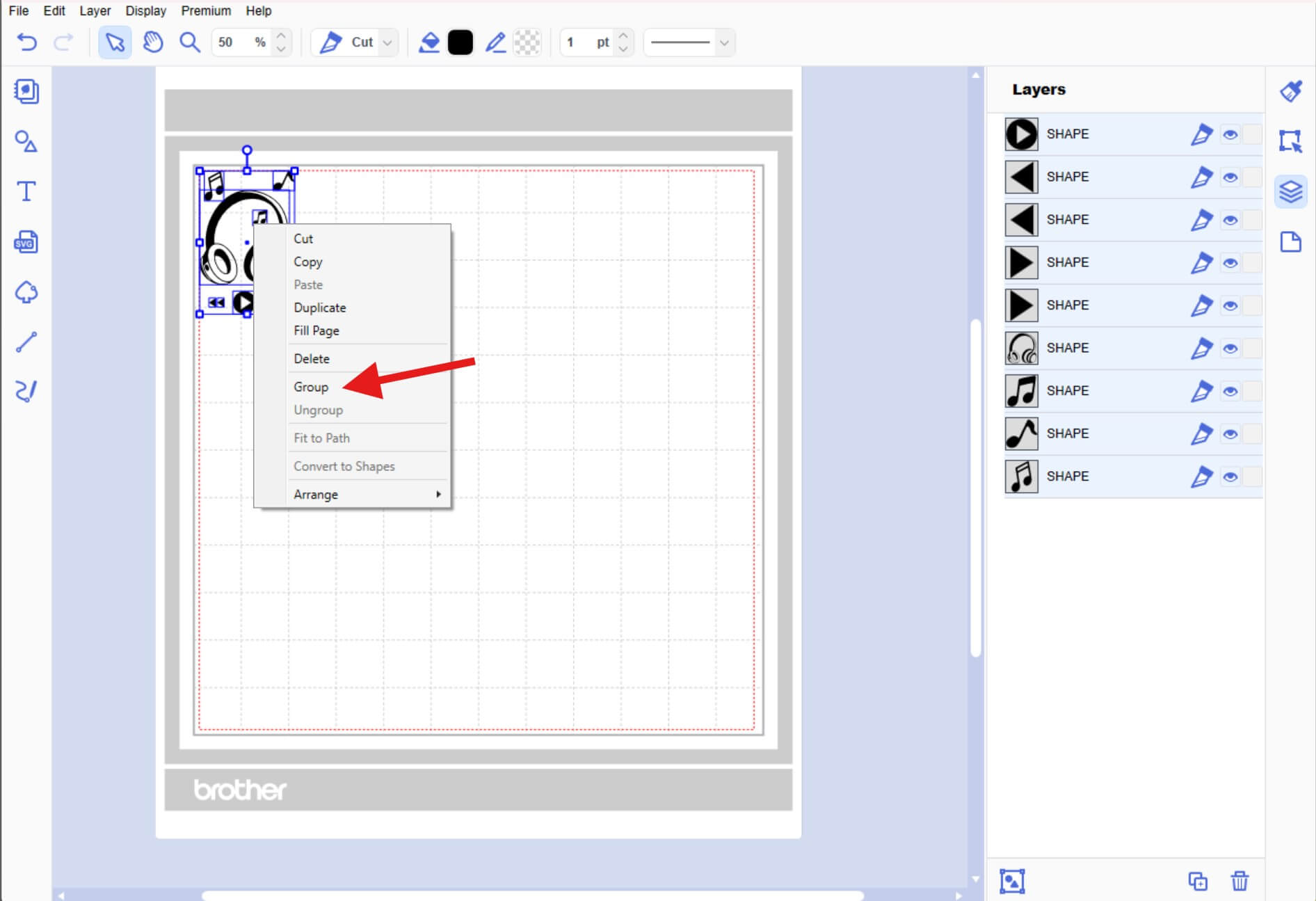
- Move the grouped design slightly down on the canvas so you have room to work above it.
- Insert the Spotify Code SVG you downloaded via the SVG icon in the left menu.
- Remove the white background layer (if present).
- Select all remaining elements of the Spotify code.
- Right-click and choose Group. This keeps the code together when resizing or positioning.
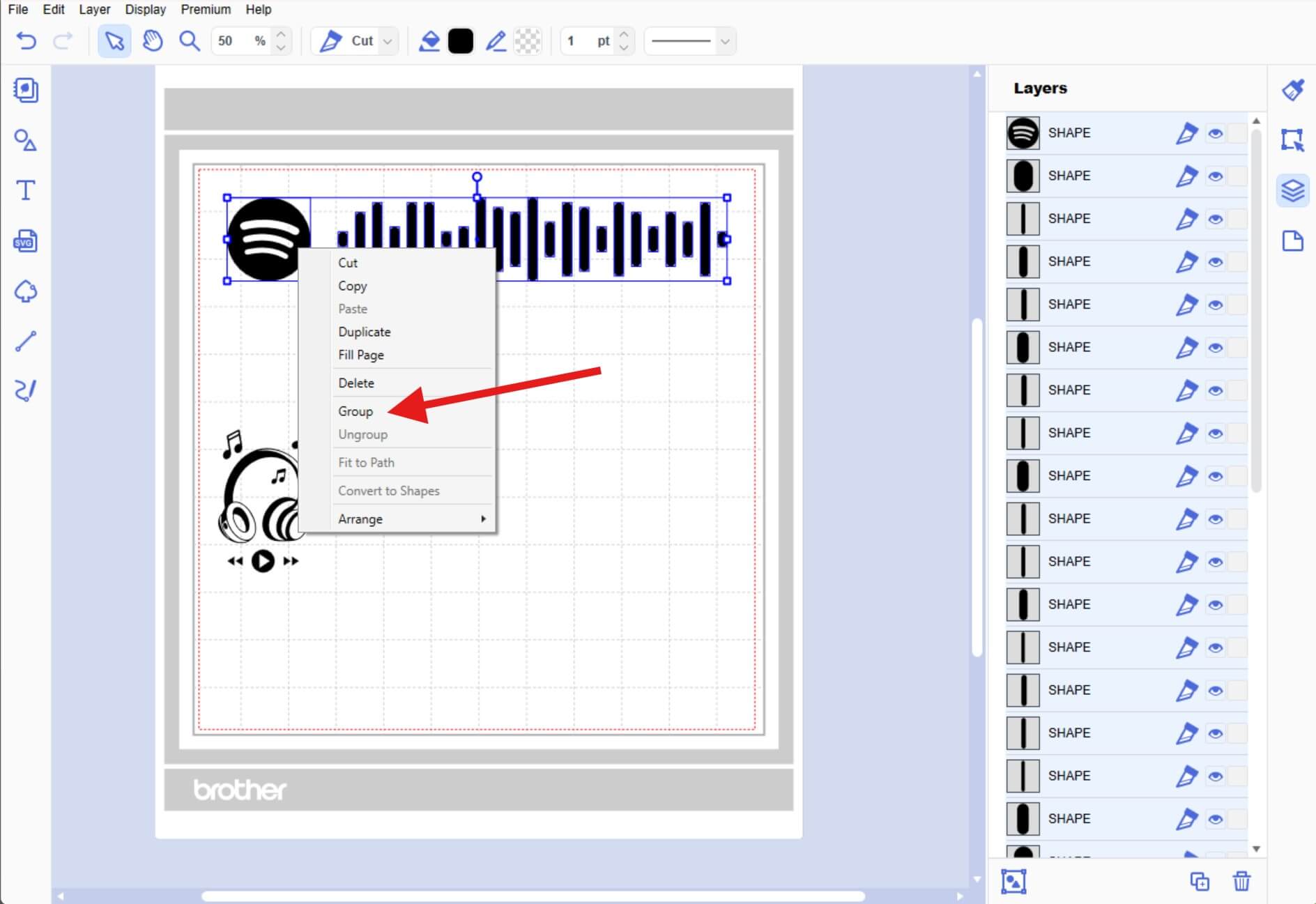
- Reposition and resize the designs to fit your plaque measurements.
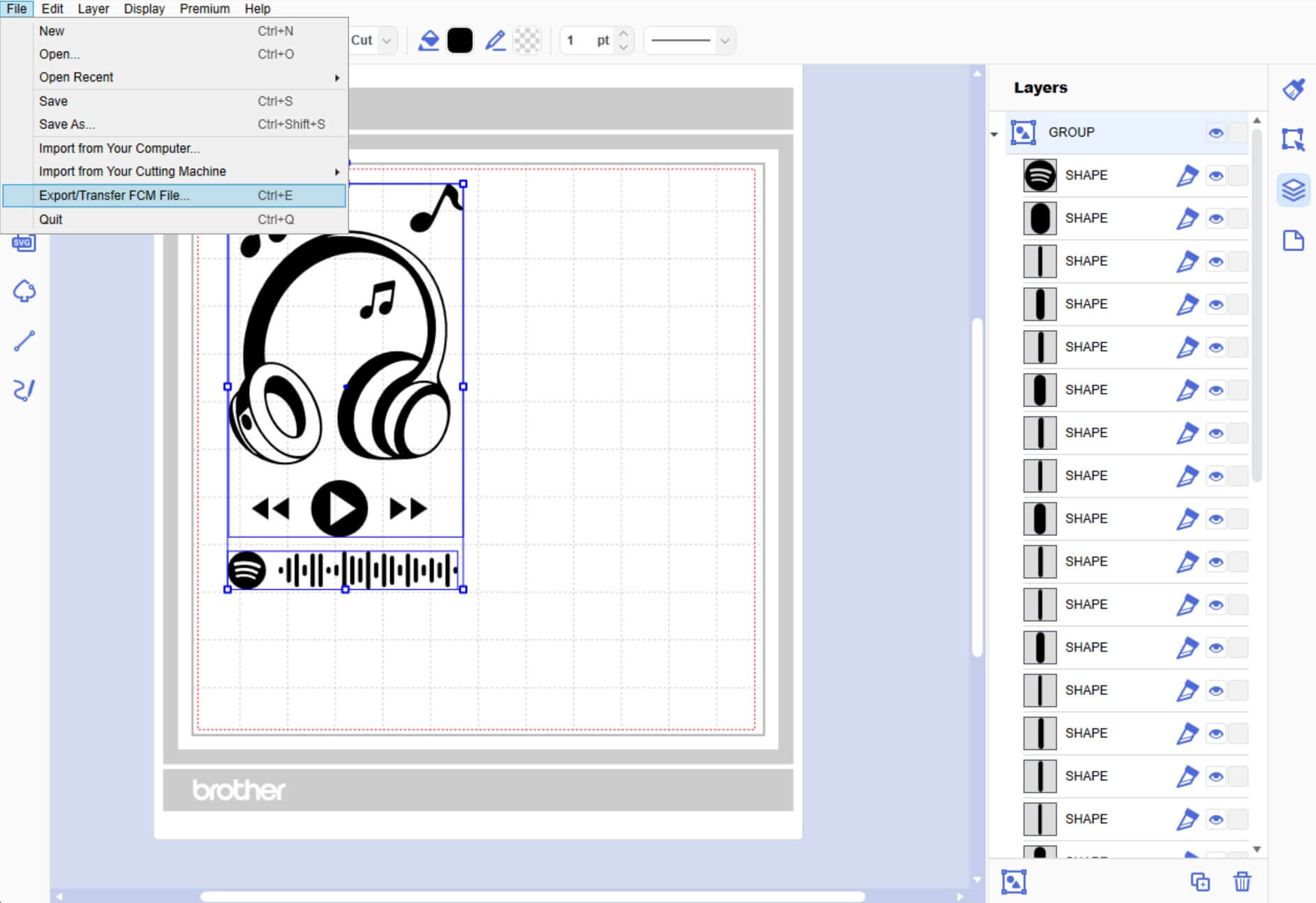
- Now we simply need to export the design. To do this select File > Export/Transfer FCM File from the top menu.
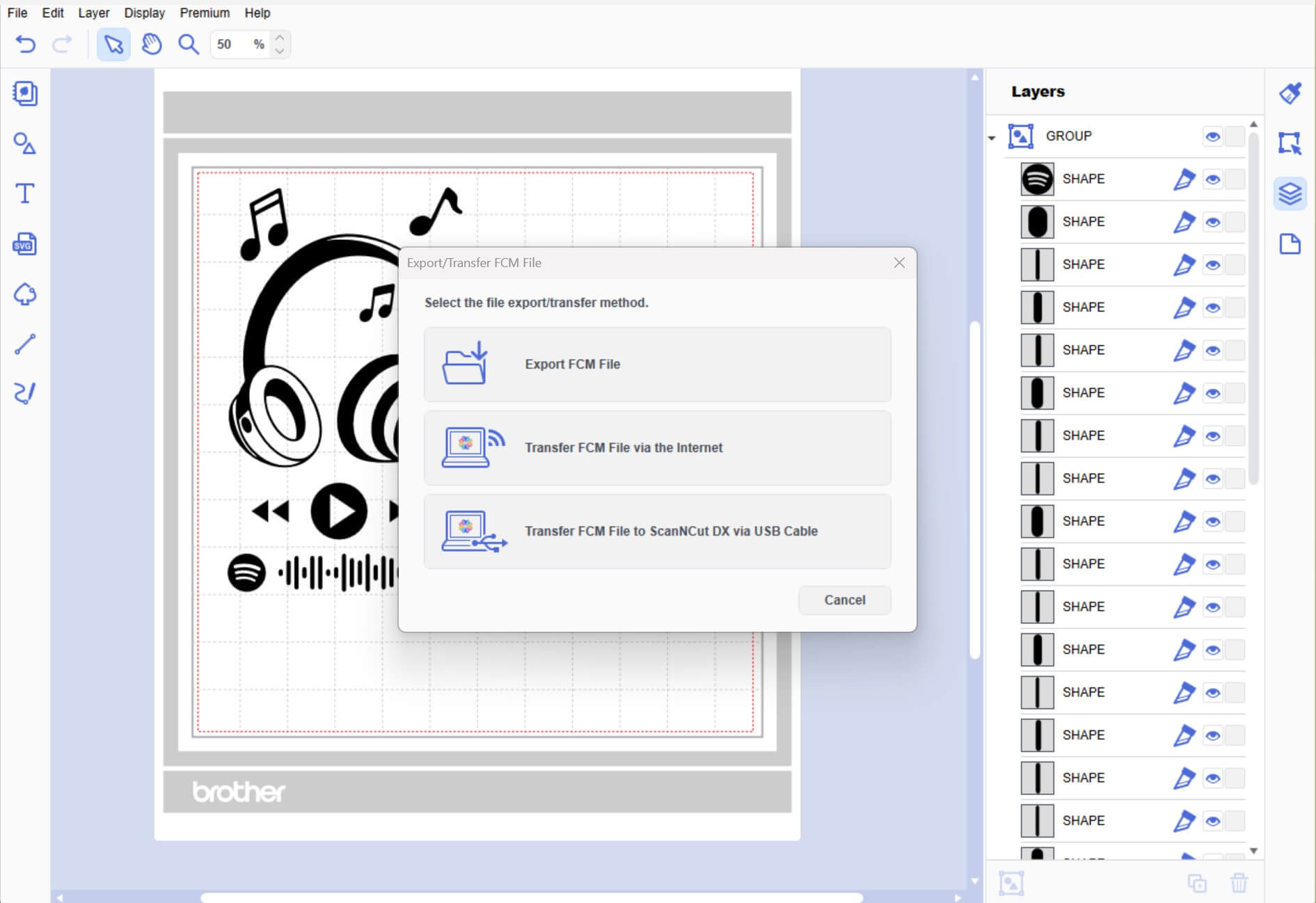
- Choose USB or Direct Transfer to send the file to your ScanNCut.
Prepare Your Design:
- Place a piece of vinyl in your chosen colour onto your machine mat, making sure it is large enough for the required design. Ensure the media is stuck to the mat the correct way up, using a brayer/roller may be helpful. Masking tape can help tape it down if your mat is starting to lose its tack.
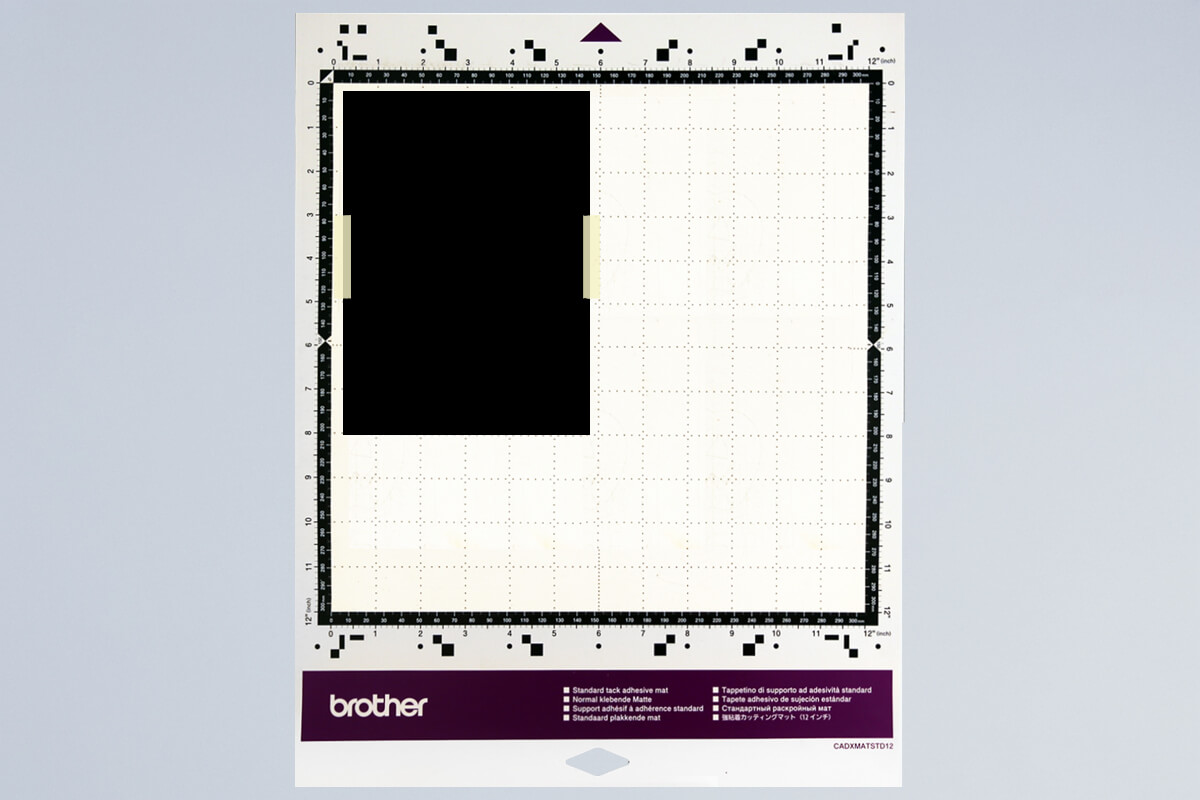
- Load the mat into your machine, holding it level as it feeds in.
- Load the design from CanvasWorkspace via Wifi select (3) or if you saved to a USB (2).
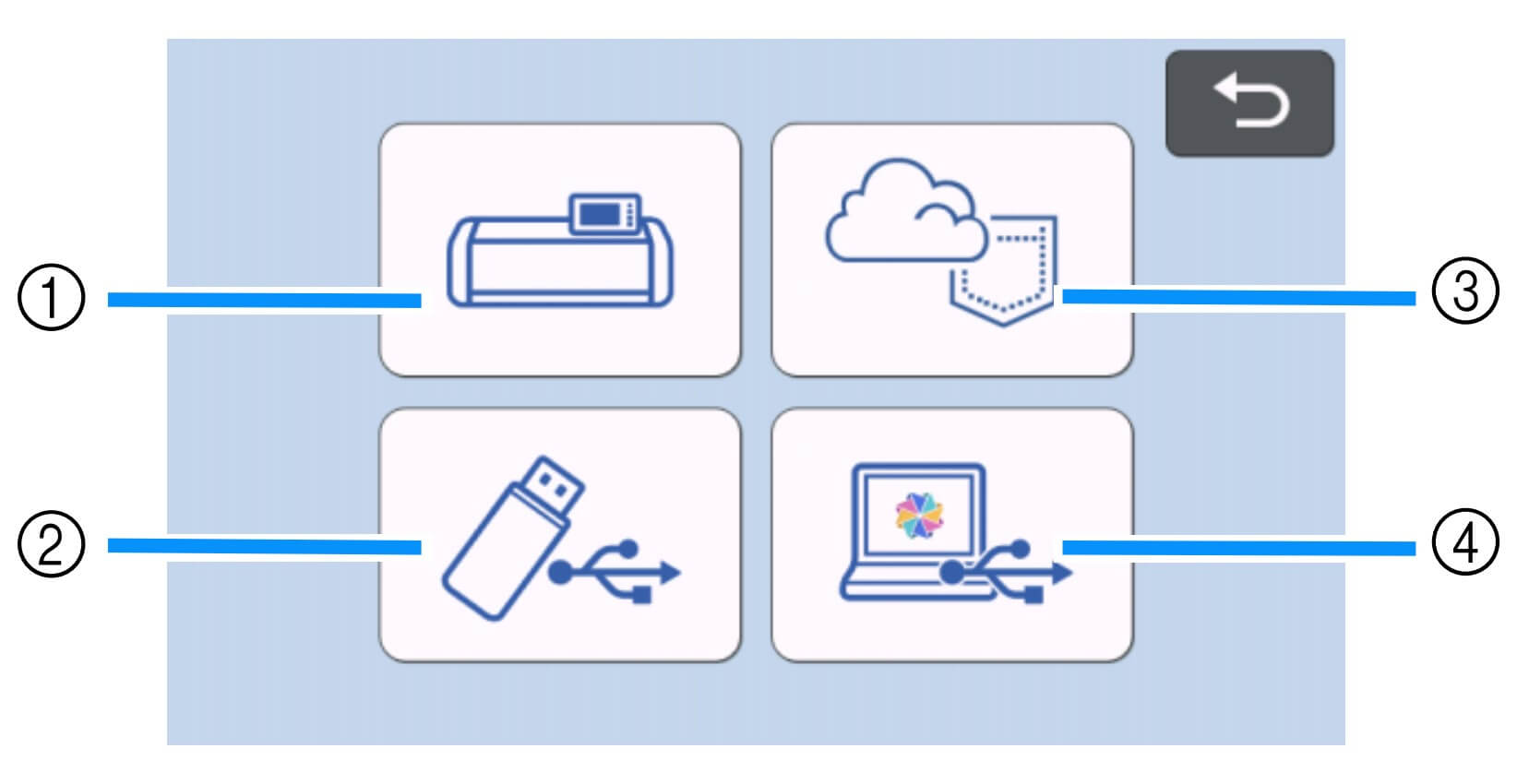
- Scan the mat to check placement and adjust if needed.
- Adjust your machine settings to be suitable for cutting vinyl. For ScanNCut users you will need to enable the half cut option.Tip: We suggest doing a test cut to ensure you have your settings correct for the medium you are using. Cutting a small hole in the corner of your mat is a lot less upsetting than cutting a large design straight through your mat.
- Proceed with cutting the design.
- Once the cutting is complete, unload the mat from the machine and gently peel the vinyl sheet off as a whole.
- Starting from one corner of the media, peel the coloured layer away from the backing (also known as ‘weeding’). Using a weeding tool may be helpful to get you started.
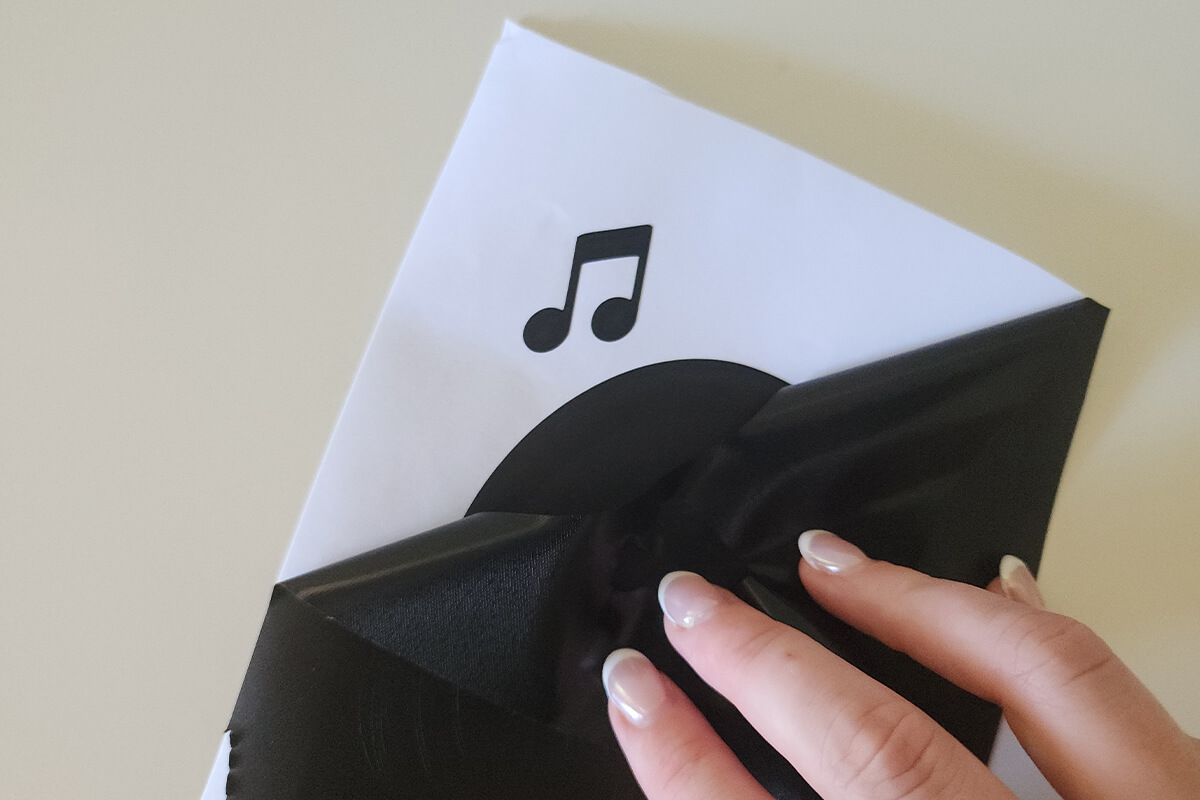
- Use a Vinyl Weeding Tool to remove the more intricate pieces if needed.
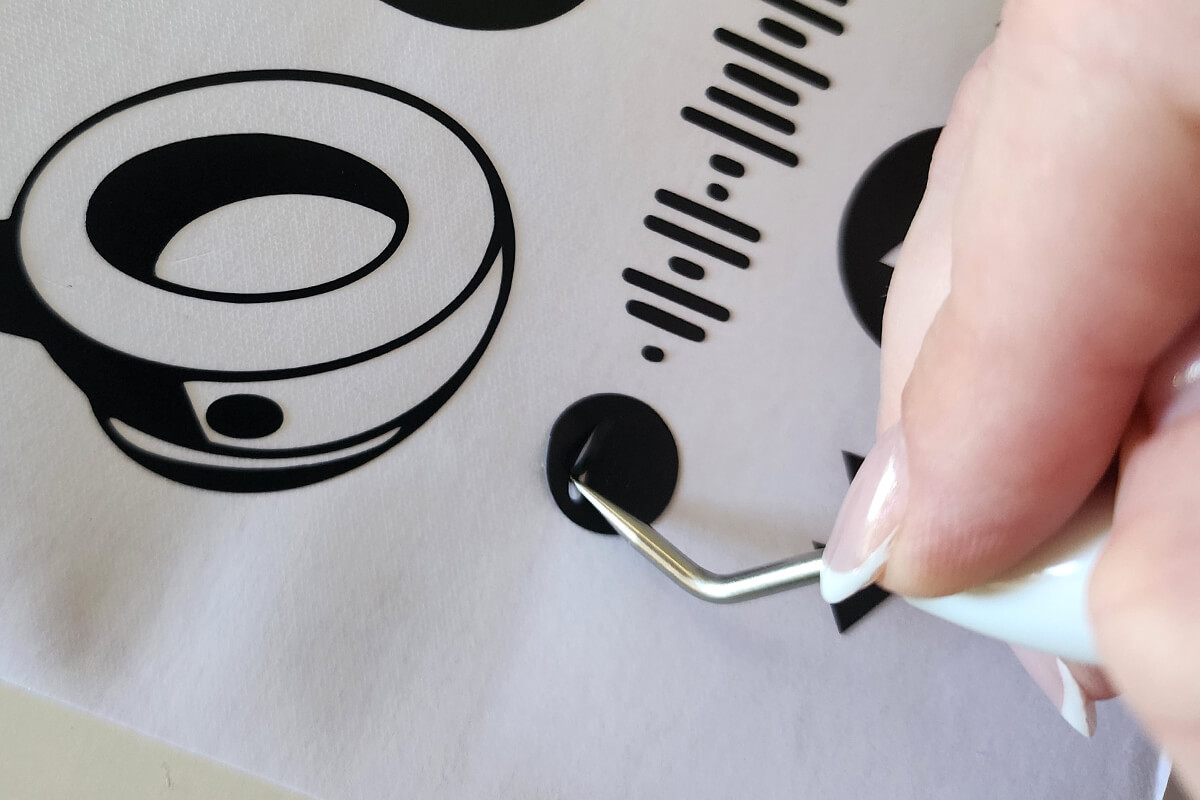
- You should be left with your design on the backing.
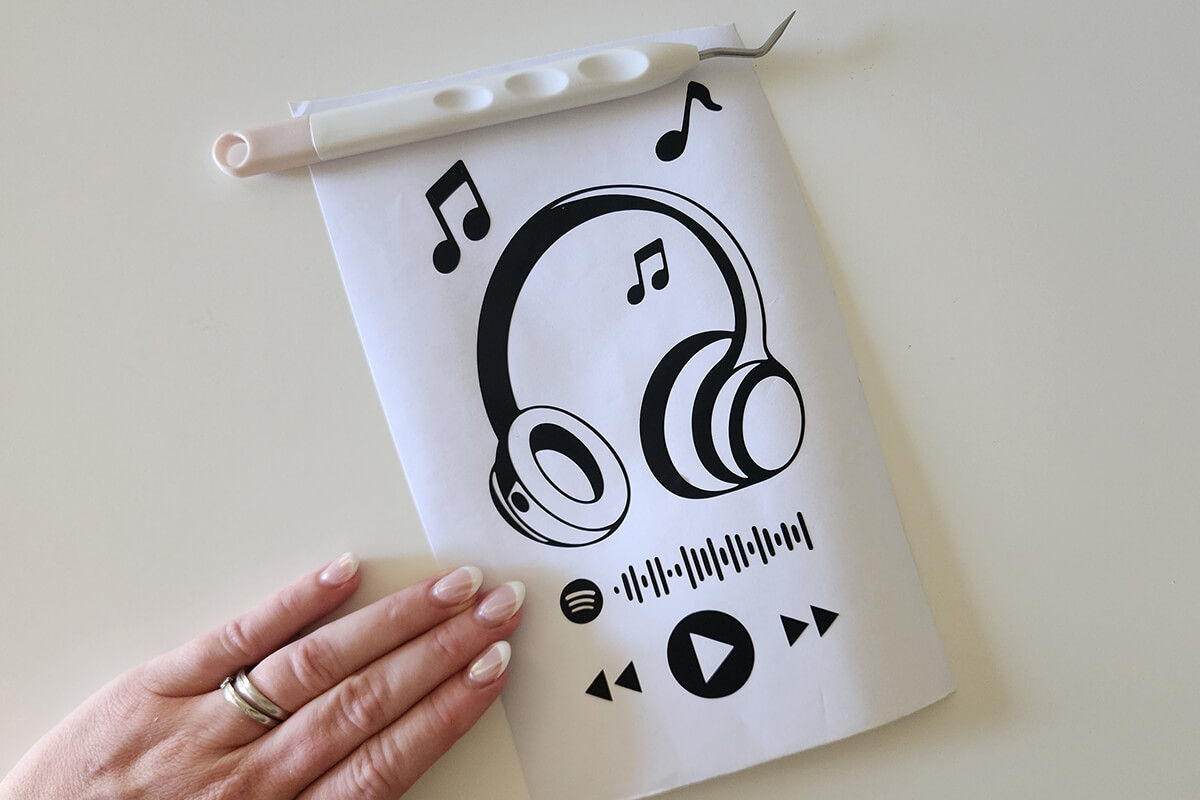
- To remove the sticker from its backing, cut a piece of Transfer Tape large enough to cover your design.
- Place the Transfer Tape over the cut-out vinyl ensuring all the vinyl is covered. Gently rub the Transfer Tape whilst on the vinyl.
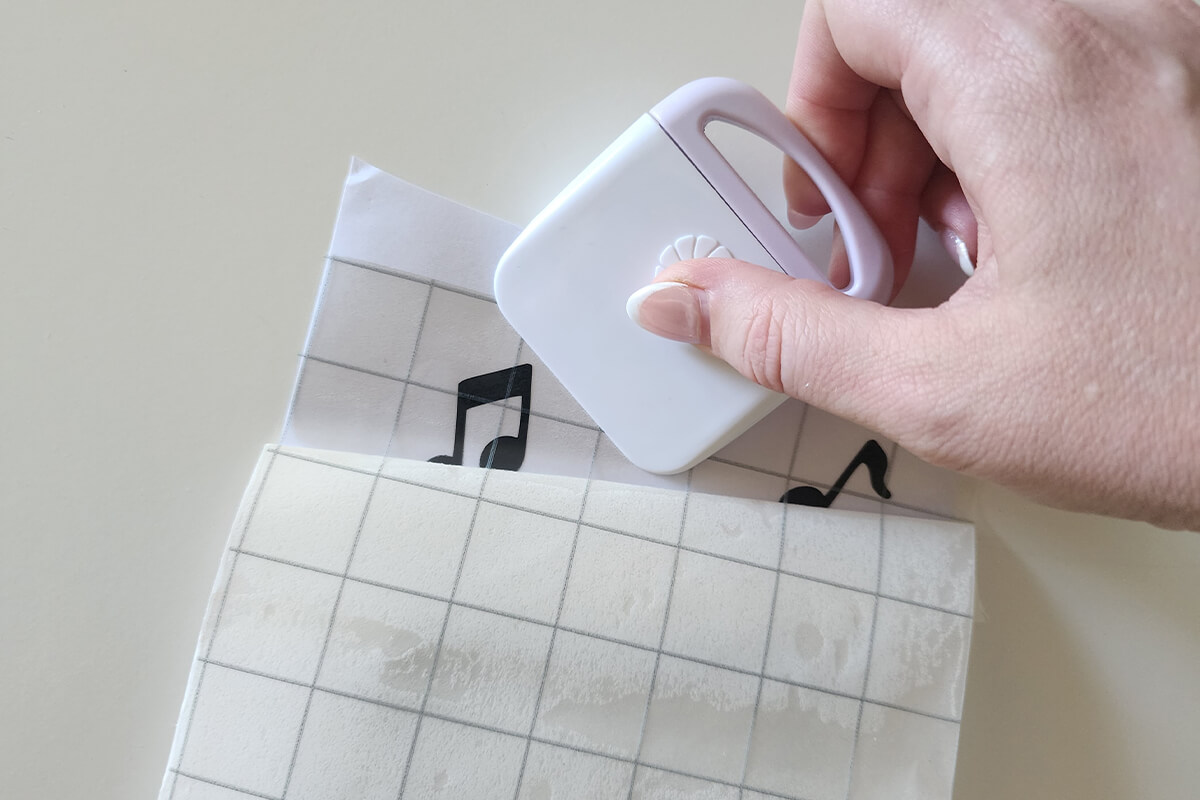
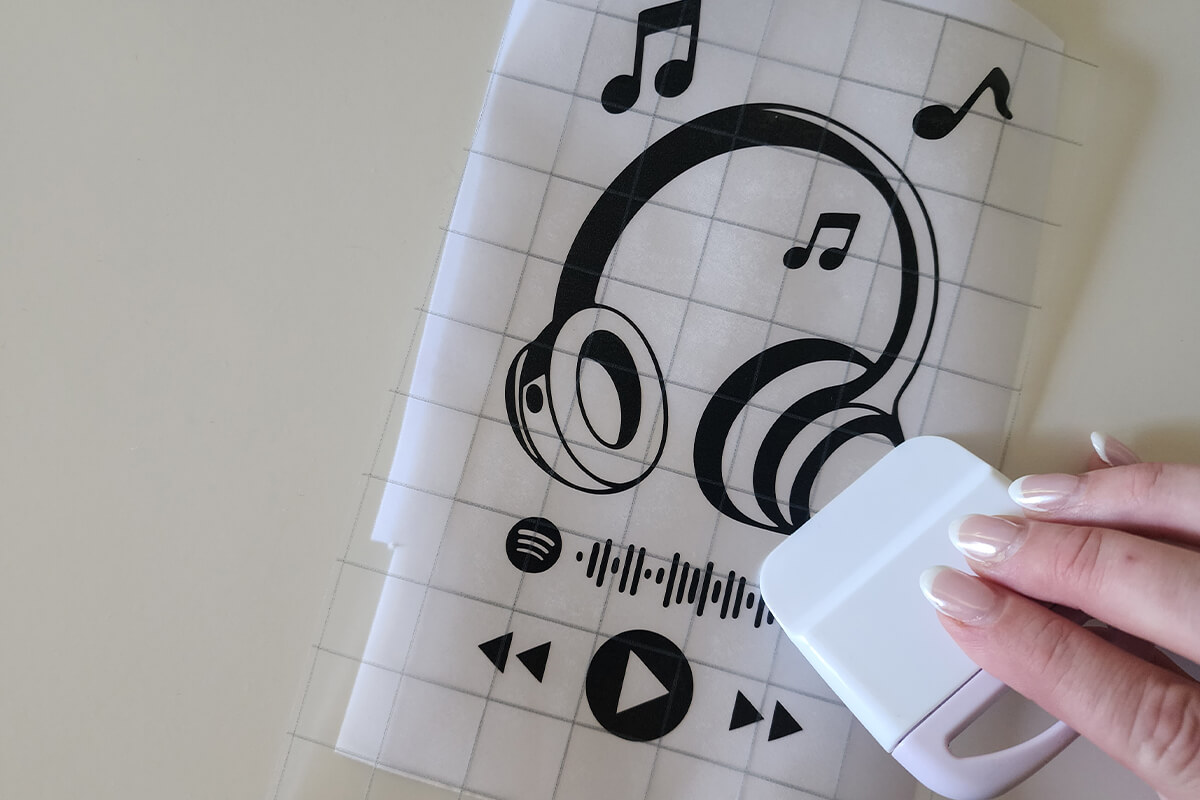
- Gently start peeling off the sticker backing. The sticker should remain stuck to the tape. If not, lay the tape back down and press firmly again.
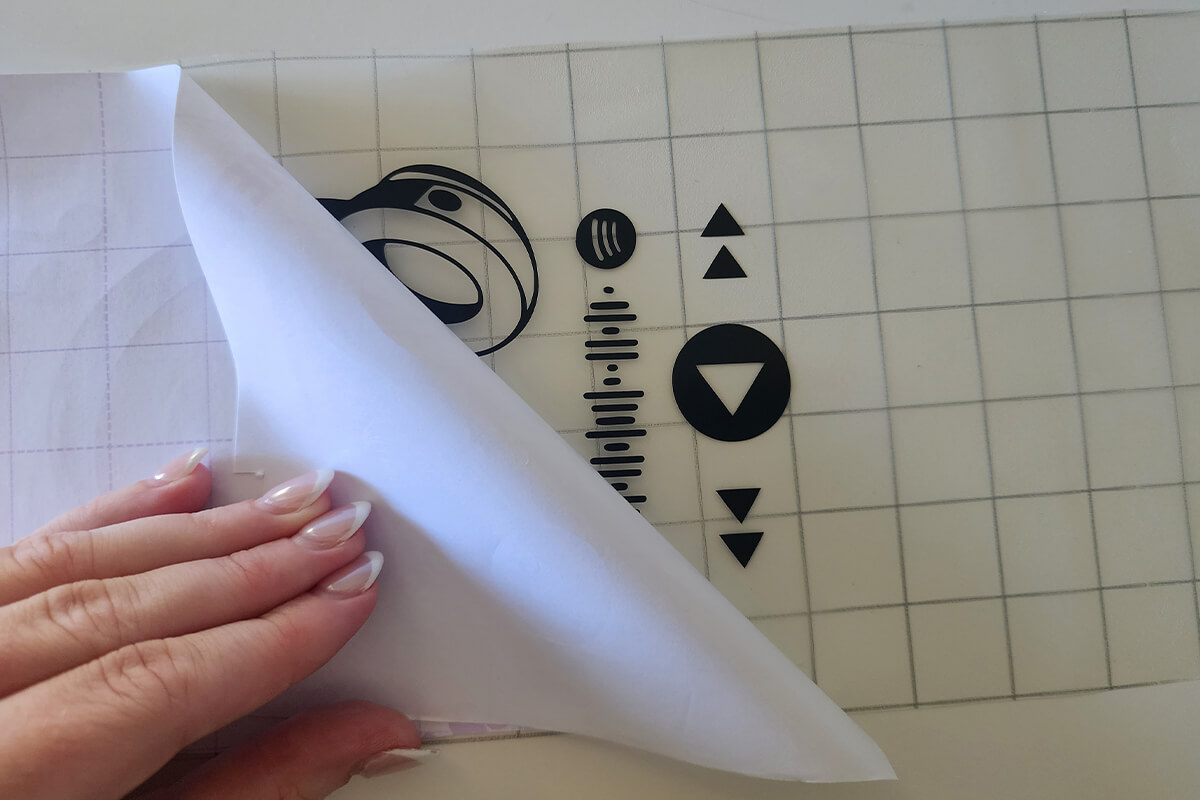
- This then exposes the adhesive side of the sticker.
- Remove the protective sheet from the acrylic.
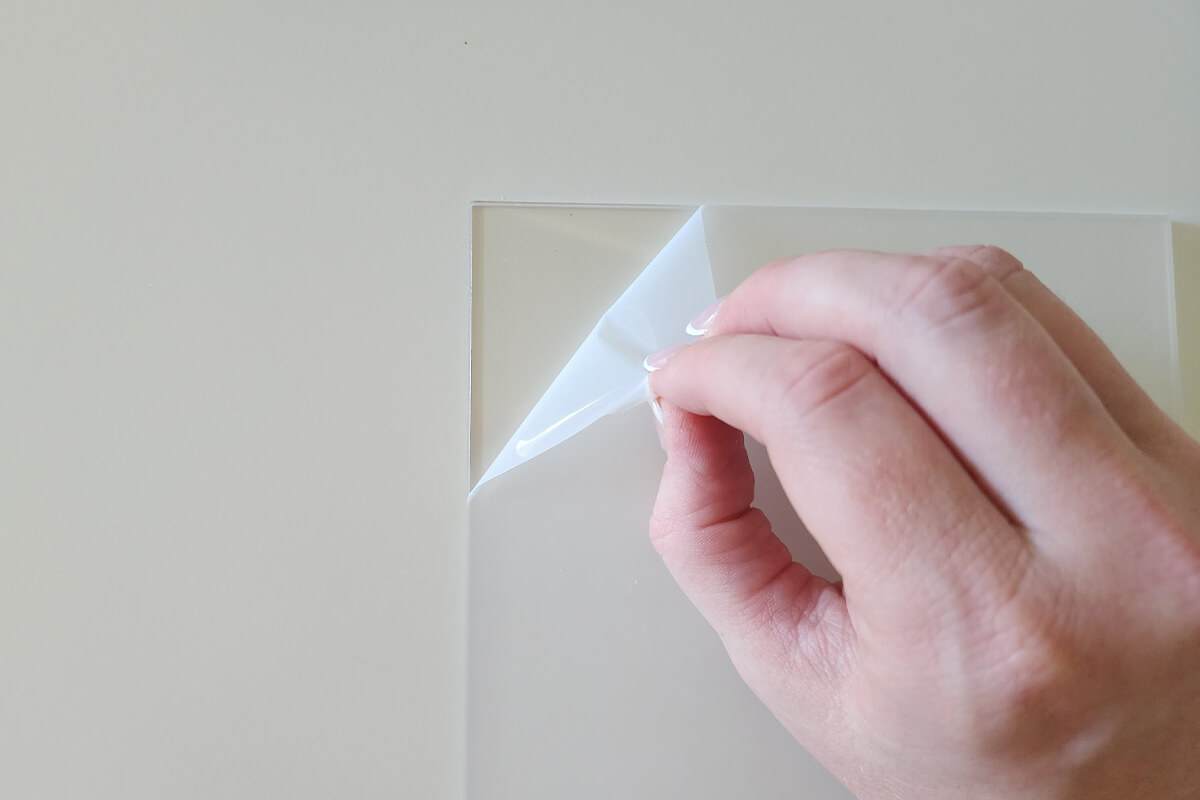
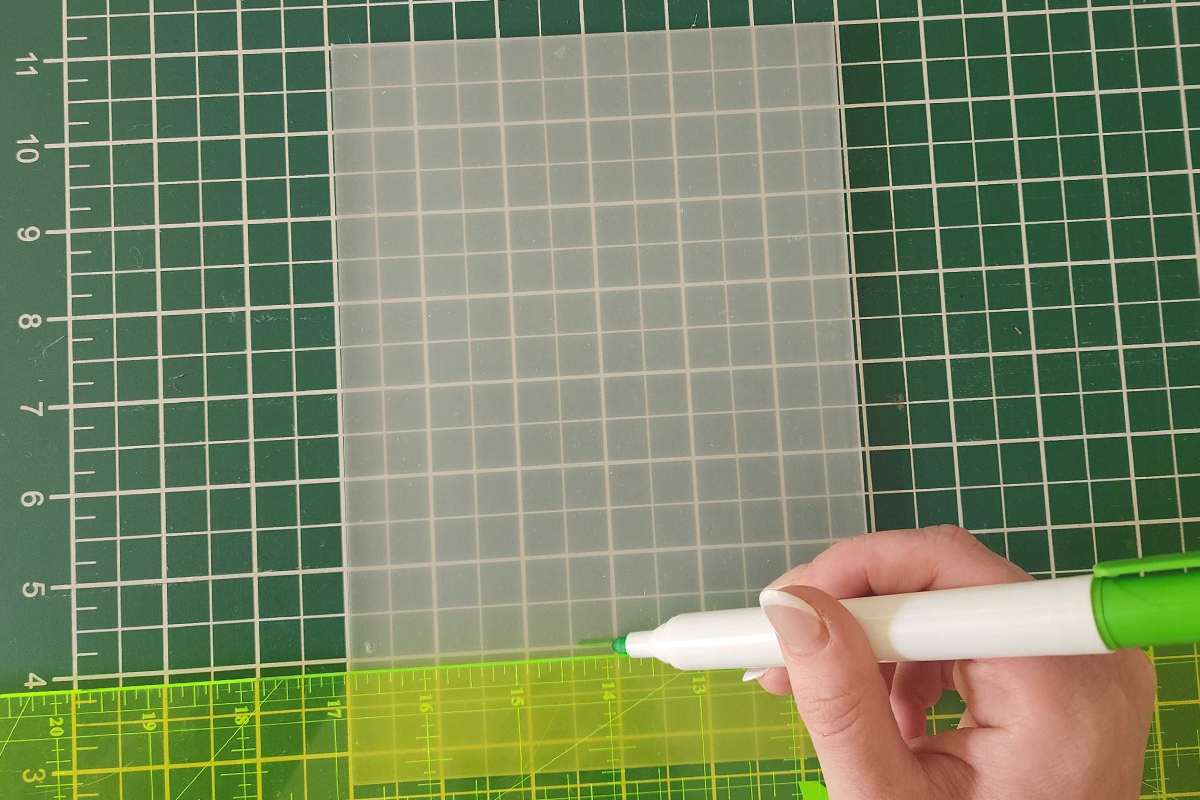
- (Optional) If you are having issues lining up the design, use your ruler and a whiteboard marker add some markings on the acrylic plaque to help centre the design. A whiteboard maker will easily rub off the acrylic once you are finished.
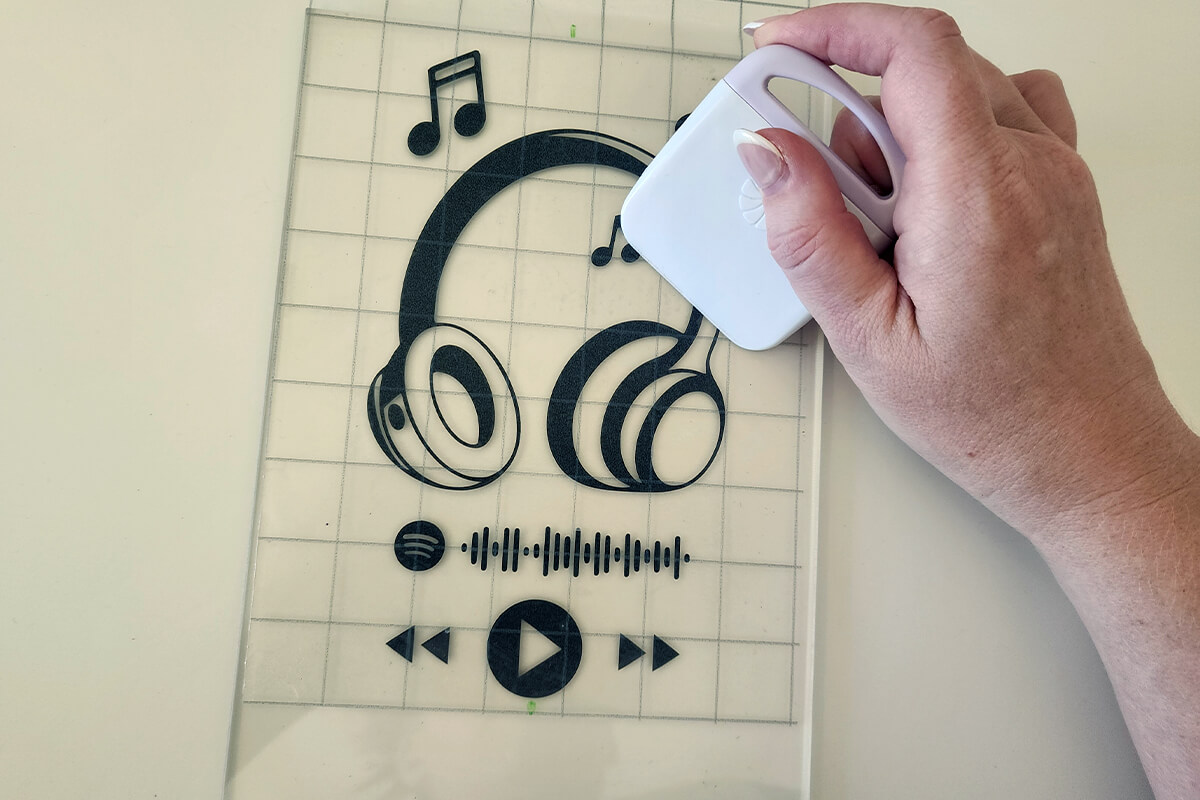
- Quickly move the sticker to the desired surface and place the design in the desired location. Press down over the sticker very firmly to force the adhesive to tack.
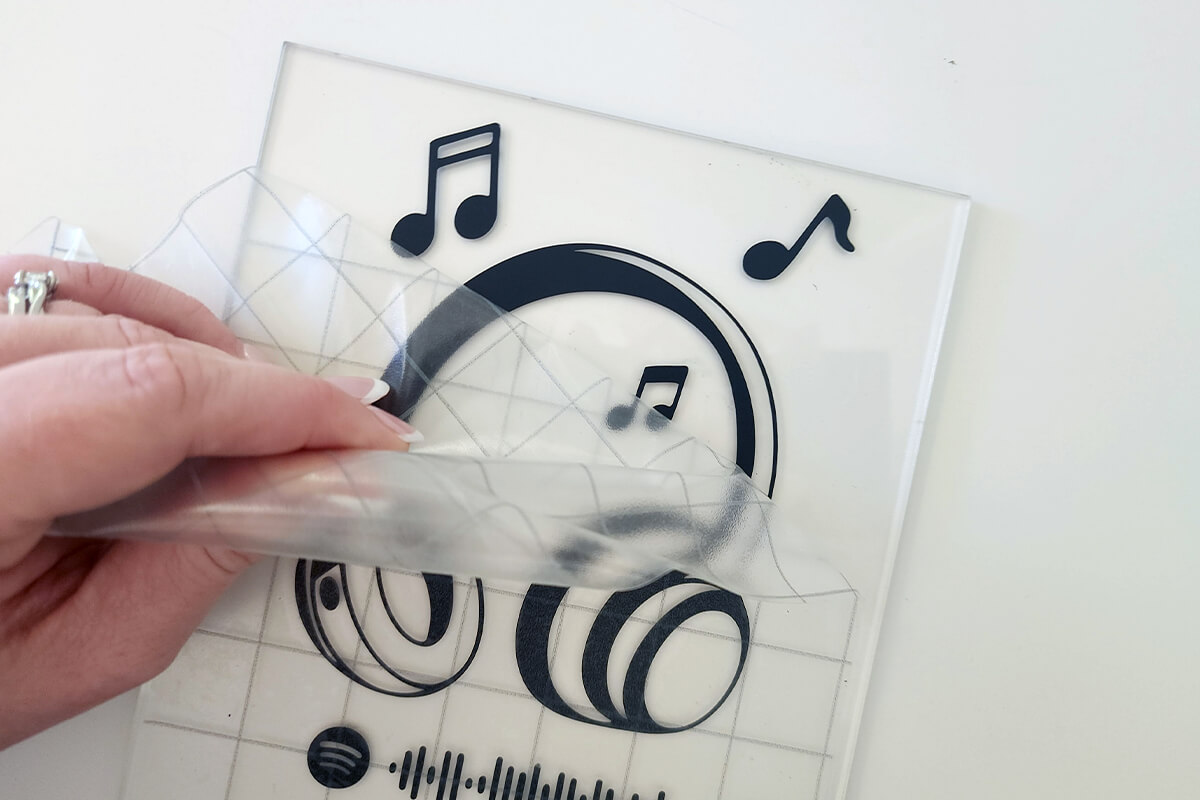
- The sticker’s own adhesive is much stronger than the masking tape or transfer tape, so once the sticker is applied the tape can be peeled away to reveal the applied sticker.
- Fit the plaque base (this may differ to what we have pictured).
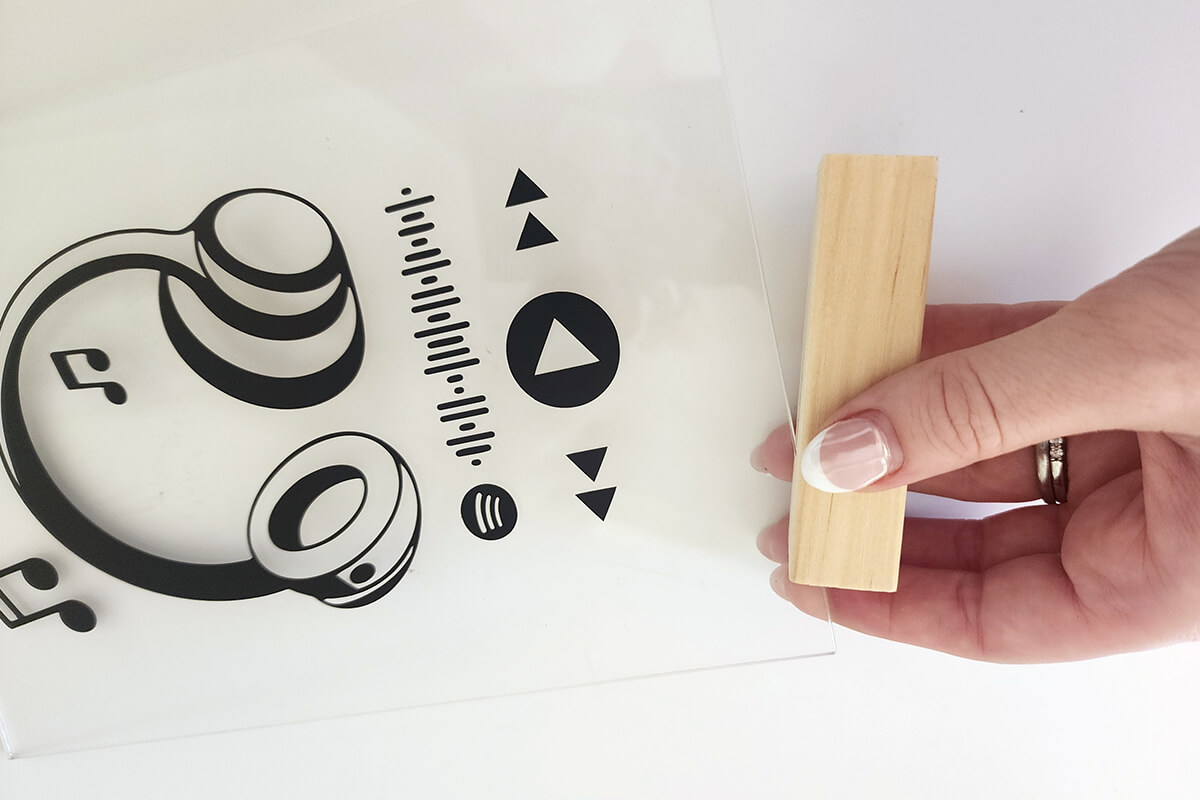
- Stand up your plaque and position it to where people can scan it in!
Free Embroidery Designs
We're excited to offer our free Echidna designs available for download. These free designs are perfect for those at a beginner or an advanced level. Add these designs to your stash and create incredible embroidery!
View all free designs >
Sewing, Quilting and Embroidery Machines
Interested in learning how to sew, quilt or embroider? Take a look at the innovative Brother machines available for purchase at Echidna Sewing. Wherever possible we will beat any deal and you will always receive ongoing service and support!
Find out more >
Learn to Sew or Embroider with Echidna Sewing
Come along to our fun-filled classes to learn more about sewing, embroidery and crafting. Classes cater for all skill levels, whether you're just starting out or already have advanced knowledge.
Find out more >
Echidna project material/ fabric requirements are an indication only and can seem to be generous. This has been intentional. Should you make a cutting or embroidery mistake you will have sufficient fabric to rectify your error.